Agent Chat
Chat with a scoped AI agent inside Home Assistant. Pick an access key and provider account; Phoenix applies that access key's permissions, capabilities, approvals, and MESA rules.
Agent Chat vs. External client
Connecting an external client (Claude Code, Codex, and so on) points a tool you already use at Phoenix MCP's MCP endpoint. Agent Chat is the opposite: there's nothing to install and it runs within Home Assistant, but it uses your own LLM account's API key and runs one conversation at a time in the browser. Both drive the same scoped tools and the same safety gates. Use whichever fits your needs.
What it is
When you open Agent Chat, a small chat window floats on top of the panel. You type a request, the agent reasons and calls Phoenix MCP's tools on the access key you selected, and its replies, the tools it calls, and their results stream in live. Because Agent Chat runs through the same gated dispatch path an MCP client uses:
- The agent can only ever use the tools that access key would expose, and only reach the entities in its permission scope.
- Capability gates still apply. An action set to
confirmstill needs your approval; one set todenyis not offered. - MESA per-entity rules still apply. A read-only or confirm-by-nature entity behaves the same as it would for any client.
- Tool calls go to the same audit log as any other client, attributed to that access key, subject to your logging settings.
Agent Chat adds no new authority. It is a convenient front end for the exact same scoped surface an external agent would get.
The Home Companion persona, marked with a colored star in the persona picker, handles each request as a separate household task through home_request. It uses the conversation provider and model configured in Voice settings, with the selected access key's permissions. Agent Chat clears its previous transcript when you submit the next Home Companion request. Resend a complete task when clarification is needed. Conversation style and Detail still apply to replies; Decision Provider routing and tool review do not participate.
Before you start: add a provider account
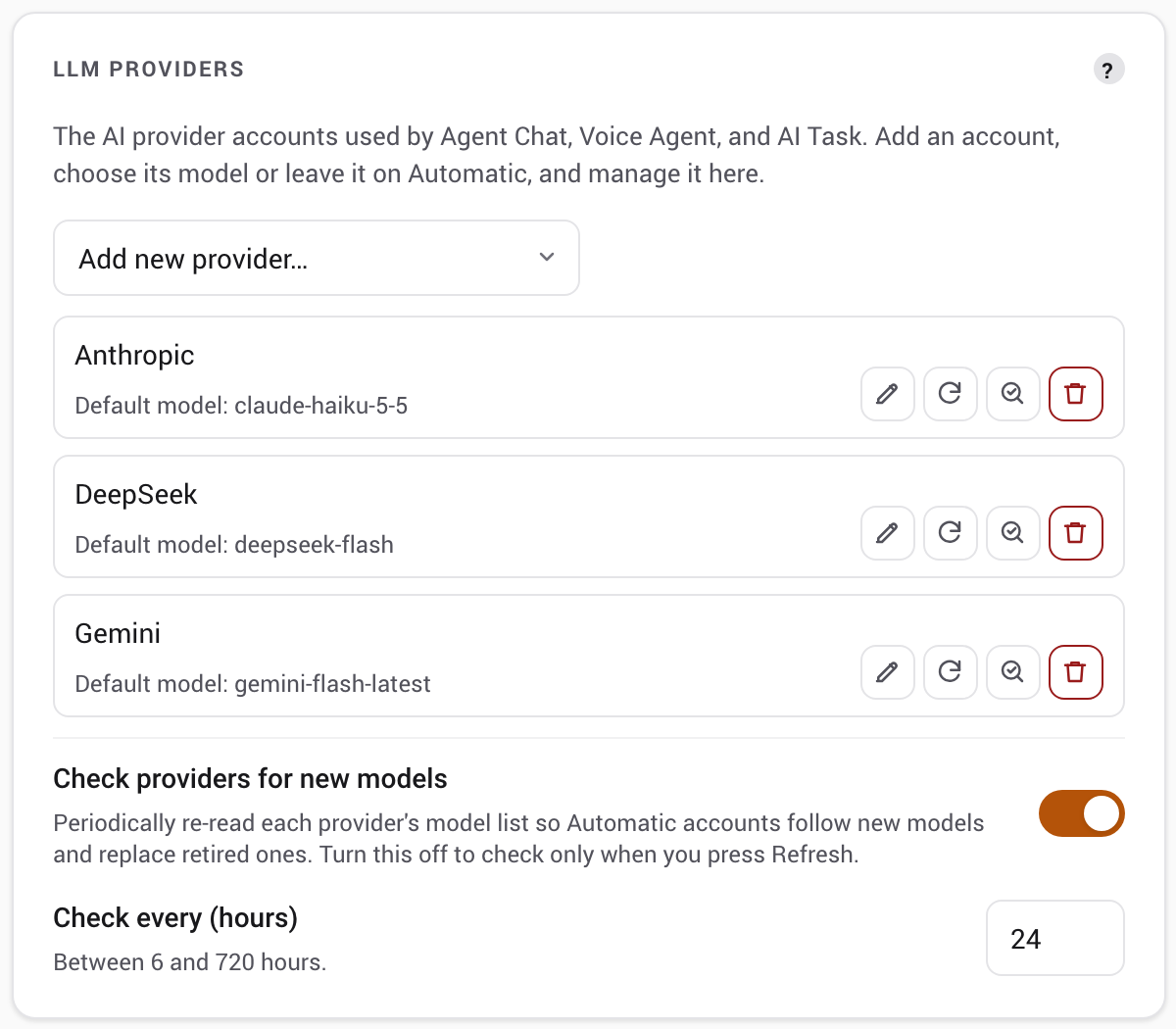
Agent Chat needs an AI provider account. Add one hosted provider or a local Ollama server; you can add more accounts later.
Models update themselves. By default an account is set to Automatic: Phoenix reads the provider's own model list periodically (by default every 24 hours; you can change the period or turn the check off in the LLM providers card, and Refresh always works) and uses its newest suitable model, so a provider releasing or retiring models needs no Phoenix update. You can still pick a specific model. If a model you picked later disappears from the provider's list, Phoenix switches that account to the newest model of the same family, or the provider's best model when that family has none left, and says so on the account card; a model you typed in yourself, or one the provider never listed, is never replaced. Voice, AI Task and Agent Chat all follow the account's current model. Decision providers always use an exact model and never switch.
Search matches provider names only.
No provider matches your search.

Alibaba Cloud Model Studio / Qwen
- Description
- Hosted Qwen models through Alibaba Cloud Model Studio.
- Models
- Models returned by your region or workspace.
- Vision
- Not auto-detected by Phoenix.
- Temperature
- Available when thinking is off.
- Thinking
- On or Off on hybrid models; thinking-only models always reason.
- Free option
- New-user quota in eligible regions
- Additional notes
- Enter the full HTTPS Base URL. Workspace endpoints include the workspace ID and are Alibaba's recommended form; the older shared
dashscope.aliyuncs.comhost stops receiving new features after 30 September 2026. API keys are specific to a region.

Cerebras
- Description
- Fast hosted inference through Cerebras' OpenAI-compatible API.
- Models
- Live models available to your account.
- Vision
- Not auto-detected by Phoenix.
- Temperature
- Available; Check options verifies the selected model.
- Thinking
- Model-dependent; use Check options.
- Free option
- Free tier with lower limits
- Additional notes
- Select a model after Phoenix validates the key.
ChatGPT
- Description
- OpenAI's hosted GPT and o-series APIs.
- Models
- Live chat models available to your account, excluding models that cannot use tools through the Chat Completions API.
- Vision
- Not auto-detected by Phoenix.
- Temperature
- Standard GPT models.
- Thinking
- Reasoning levels on o-series and GPT-5 models when no tools are involved. Tool turns run with reasoning off, because the Chat Completions API cannot combine tools with reasoning on current models.
- Free option
- Limited test access may be account-dependent
- Additional notes
- API billing is separate from a ChatGPT subscription. Choose United States or Europe only for a project set up for that data residency. Caps tool definitions at 128 per request; an access key that announces more is refused before the request, with the count.
Claude
- Description
- Anthropic's hosted Claude API.
- Models
- Automatic follows the newest Opus model; you can select another available model.
- Vision
- Auto-detected per model.
- Temperature
- Not sent by Phoenix.
- Thinking
- Adaptive thinking with a selectable effort level.
- Free option
- No standard API free tier
- Additional notes
- Anthropic requires prepaid usage credits for normal API access.
DeepSeek
- Description
- DeepSeek's hosted OpenAI-compatible API.
- Models
- Live models available to your account.
- Vision
- Not auto-detected by Phoenix.
- Temperature
- Available when thinking is off.
- Thinking
- Off, Low, High, or Max on supported models.
- Free option
- Granted or promotional balance, if offered
- Additional notes
- Phoenix raises DeepSeek's output cap to reduce truncated tool calls. DeepSeek Harness is a separate external client; use its MCP setup instructions to connect it to Phoenix.

Fireworks
- Description
- Hosted inference through Fireworks' OpenAI-compatible API.
- Models
- Live models available to your account.
- Vision
- Not auto-detected by Phoenix.
- Temperature
- Available; Check options verifies the selected model.
- Thinking
- Model-dependent; use Check options.
- Free option
- Free credits for new users
- Additional notes
- Choose a model that supports tool calling.
Gemini
- Description
- Google's Gemini models through its OpenAI-compatible endpoint.
- Models
- Gemini chat models returned by Google, excluding speech, image, and live-session models.
- Vision
- Not auto-detected by Phoenix.
- Temperature
- Not sent by Phoenix.
- Thinking
- Minimal to High on Gemini 2.5 and 3 models.
- Free option
- Free tier for eligible models
- Additional notes
- Free-tier prompts may be used to improve Google's products.
Grok
- Description
- xAI's hosted Grok models through an OpenAI-compatible API.
- Models
- Live chat models available to your xAI team, excluding image, video, and voice models.
- Vision
- Not auto-detected by Phoenix.
- Temperature
- Available when thinking is off.
- Thinking
- Off, Low, or High on reasoning models.
- Free option
- No standard API free tier
- Additional notes
- API usage draws from prepaid credits or approved invoice billing. The United States endpoint serves only the models xAI hosts there.

Groq
- Description
- Fast hosted inference through Groq's OpenAI-compatible API.
- Models
- Live models available to your account.
- Vision
- Not auto-detected by Phoenix.
- Temperature
- Available; Check options verifies the selected model.
- Thinking
- Model-dependent; use Check options.
- Free option
- Free tier with rate limits
- Additional notes
- Phoenix hides model options whose support has not been established. Caps tool definitions at 128 per request; an access key that announces more is refused before the request, with the count.
Kimi
- Description
- Moonshot's Kimi models through an OpenAI-compatible API.
- Models
- Your account's entitled models, such as K3, K2.6, and K2.7 Code.
- Vision
- Not auto-detected by Phoenix.
- Temperature
- Legacy
moonshot-v1models only. - Thinking
- K3: Low, High, or Max. K2: On or Off.
- Free option
- Account and promotion-dependent
- Additional notes
- K3 is plan-gated. Some older model families are unavailable to new accounts. Choose China only for a key issued by the Moonshot China platform.
Meta
- Description
- Meta's public-preview, OpenAI-compatible Model API.
- Models
- The Muse Spark text models. Automatic follows the newest; the data-sharing contributor variants are not offered.
- Vision
- Not auto-detected by Phoenix.
- Temperature
- Not sent by Phoenix.
- Thinking
- Minimal to X-High; Muse Spark always reasons.
- Free option
- Not documented for the public preview
- Additional notes
- The Meta Model API is in public preview and may change.
MiniMax
- Description
- MiniMax models through its Anthropic-compatible API.
- Models
- The models MiniMax lists for your key, with a built-in list of its current models if the listing is unavailable.
- Vision
- Not auto-detected by Phoenix.
- Temperature
- Not sent by Phoenix.
- Thinking
- On or Off; the M2 series and some newer models always reason.
- Free option
- No standard API free tier
- Additional notes
- Pay-as-you-go API keys and Token Plan keys are separate.
Mistral AI
- Description
- Mistral's hosted OpenAI-compatible Chat Completions API.
- Models
- Active models that declare chat and function calling, excluding deprecated and Labs models.
- Vision
- Auto-detected per model.
- Temperature
- Available on supported models.
- Thinking
- None or High on
mistral-small-latestandmistral-medium-3-5. - Free option
- Free mode with included usage
- Additional notes
- Refresh models to update Phoenix's capability metadata. The Europe and United States endpoints serve only the models Mistral hosts in that region. Caps tool definitions at 128 per request; an access key that announces more is refused before the request, with the count.
NVIDIA NIM
- Description
- NVIDIA-hosted endpoints for models from many vendors.
- Models
- Live catalogue, excluding embedding, reranking, safety, and other obvious non-chat models.
- Vision
- Not auto-detected by Phoenix.
- Temperature
- Available; Check options verifies the selected model.
- Thinking
- Model-dependent; use Check options.
- Free option
- Free development endpoints
- Additional notes
- The catalogue does not declare tool calling. Choose a model documented to support tools.
Ollama (cloud)
- Description
- Ollama-hosted models; no local hardware is used.
- Models
- Cloud models available to your account, such as
gpt-oss:120b. - Vision
- Auto-detected per model.
- Temperature
- Available.
- Thinking
- On or Off, or levels when the API confirms them.
- Free option
- Free tier with usage limits
- Additional notes
- Requires an Ollama account and API key.
Ollama (local)
- Description
- Models running on your own Ollama server.
- Models
- Tool-capable models installed on that server.
- Vision
- Auto-detected per model.
- Temperature
- Available.
- Thinking
- On or Off, or levels when the API confirms them.
- Free option
- Free; you supply the hardware
- Additional notes
- No API key. Enter an address the Home Assistant host can reach.

OpenCode Zen
- Description
- OpenCode's curated gateway for coding-agent models.
- Models
- Models in your Zen account that use the chat completions API. Zen serves Claude, GPT, Gemini, Grok, and most Qwen models through other APIs, so they are not offered here.
- Vision
- Not auto-detected by Phoenix.
- Temperature
- Available; Check options verifies the selected model.
- Thinking
- Model-dependent; use Check options.
- Free option
- Limited-time free models
- Additional notes
- Paid models use prepaid credit. Free model availability can change.
OpenRouter
- Description
- One OpenAI-compatible API for models from many providers.
- Models
- Hundreds of models, filtered to those that declare tool calling.
- Vision
- Auto-detected per model.
- Temperature
- Auto-detected per model.
- Thinking
- Auto-detected when declared; Check options can confirm levels.
- Free option
- Free models with low rate limits
- Additional notes
- Free model capacity and availability can vary.
Tencent Cloud TokenHub
- Description
- Tencent Cloud's gateway to models from multiple providers.
- Models
- Live catalogue of online models, excluding obvious non-chat models.
- Vision
- Not auto-detected by Phoenix.
- Temperature
- Available when supported by the selected model and thinking mode.
- Thinking
- Model-dependent; use Check options.
- Free option
- Check the provider console for current offers.
- Additional notes
- Choose Singapore, Guangzhou, or Silicon Valley to match the site where you created the API key. Keys are site-specific. Activate each required model in the TokenHub console.
Together
- Description
- Together AI's OpenAI-compatible serverless inference.
- Models
- Chat models in your account's live catalogue.
- Vision
- Not auto-detected by Phoenix.
- Temperature
- Available; Check options verifies the selected model.
- Thinking
- Model-dependent; use Check options.
- Free option
- No free trial; minimum credit purchase required
- Additional notes
- Together uses prepaid credit and pauses API access at a zero balance.
Xiaomi MiMo
- Description
- Xiaomi's hosted MiMo models.
- Models
- Live catalogue, excluding speech-only models.
- Vision
- Not auto-detected by Phoenix.
- Temperature
- Available when supported by the selected model and thinking mode.
- Thinking
- On/off; temperature applies when thinking is off.
- Free option
- Check the provider console for current offers.
- Additional notes
- Choose Pay as you go or Token Plan to match the key. The two key types are separate and cannot be mixed.

Z.ai
- Description
- Z.ai's hosted GLM API, with standard and Coding Plan routes.
- Models
- Live GLM models available on the selected route (Standard API, Coding Plan, or China).
- Vision
- Not auto-detected by Phoenix.
- Temperature
- Available when thinking is off.
- Thinking
- On or Off; the newest GLM models always think.
- Free option
- Free Flash models
- Additional notes
- The same key can be saved once for Standard API and once for Coding Plan. Caps tool definitions at 128 per request; an access key that announces more is refused before the request, with the count.
Local Ollama: the address is relative to Home Assistant, not your browser
Phoenix MCP contacts your Ollama server from the Home Assistant host itself, not from the browser tab you are looking at. http://localhost:11434 means "on the Home Assistant host," which is rarely what you want if Ollama runs elsewhere. Enter an address Home Assistant can reach, check that any firewall between them allows the connection, and if Ollama runs on a different machine, make sure it is configured to listen on more than its own loopback interface.
Changing an account's default model
Each configured account has a Change default model button listing the models that account can currently use. This sets the account's default: the model the chat starts on, and the one used when nothing else is chosen. You can still switch models per conversation from the chat header.
Opening this card also checks each account's current model list, which costs nothing beyond the lookup. If an account uses a model you picked that is not in the provider's current list, the card says so. A model the provider listed before and has since dropped is replaced automatically, as described above, so this usually means a model you typed in yourself. Phoenix keeps using a custom or private deployment the listing cannot see; otherwise, pick a current model. That model still appears in the list, marked no longer available and greyed out, so you can see what the account is set to without being able to choose it again. If a provider cannot be reached, nothing is claimed either way, so an offline provider is never reported as having dropped a model.
Refreshing what a provider offers
Each account carries four square actions: change the default model, refresh the model list, check which options the model accepts, and remove the account. Hover any of them for what it does; the check-options button also shows when it last ran, and remove is marked in red because it cannot be undone. Refresh models re-reads the model list and, where the provider publishes it, what each model supports. Most providers publish nothing beyond a model's name and owner, and the result says so rather than looking like a failed refresh. Mistral AI, OpenRouter, and Ollama publish capability metadata.
Four providers, OpenRouter, NVIDIA NIM, OpenCode Zen, and Tencent Cloud TokenHub, front many vendors' models behind one key, so Phoenix ships no thinking control for them: no single built-in answer fits, and none is guessed at. Checking a model's options is what settles it there, and for those four the result can add the control rather than only narrow it, since the check establishes the real levels for that one model. Until you run it the model still reasons at its own default; what is missing is the ability to choose.
Otherwise, where capabilities are known they only ever remove a control: a model that declares no reasoning loses the Thinking dropdown, and one that declares no temperature loses that field. A provider that says nothing leaves the controls as they are, so refreshing can never take away a control you were using.
The most useful thing it reports is tool calling. Agent Chat cannot work with a model that cannot call tools, which on a local Ollama is an ordinary thing to have installed. Those models appear in the model list greyed out and marked no tool calling, so you see it where you would otherwise pick one. The refresh costs nothing beyond the lookups, and never sends anything to the model.
A warning appears only when the account's model needs your attention: the provider's current list does not include it, or it cannot call tools. Close it with the × and a small red ! stays next to the model name; click that to read it again. Closing is remembered, and a warning about a different model is a different warning, so acknowledging one never hides a new problem.
Checking which options a model accepts
Most providers publish nothing about their models, so for those, what Phoenix offers in the Thinking and Temperature controls starts as a built-in assumption. Check options replaces the assumption with an answer from the API itself.
It is offered whenever a model is chosen, both when you add an account and when you change its default model, since knowing a model's real options matters before the first conversation rather than after one behaves oddly. Both forms say so and let you skip it; a failed check never fails the account, and you can run it later from the card.
It is the only control on this card that costs anything, so it asks first and says so. It sends a few one-token requests using the account's selected model and reads which options the API accepts or refuses. The amount is small but not zero.
It works by asking a question the API can only answer one way. It first sends a plain request with no options, and continues only if the model accepts it, so a model the provider refuses outright is never mistaken for one that refuses a particular option. Next it sends a deliberately invalid option: if the API rejects it, that option is genuinely being read, and only then does Phoenix test the real values. A provider that quietly ignores options it does not recognise cannot be asked this way, and the result says so rather than pretending to have learned something. Where Phoenix does not send a thinking level to that provider at all, there is nothing to check and the result says that instead. And if the provider declines every request, because the account has no credit or the key is not valid for that model, the result says that too rather than reporting it as a finding about the model. Nothing is ever narrowed on a guess.
Phoenix also learns from ordinary use. If a provider refuses one of these options during a real conversation, that is recorded and the option stops being offered for that model, so the same failure does not repeat. It only counts a refusal Phoenix can attribute: the provider must reject the request outright and name an option Phoenix actually sent. These findings expire after a month, because a model that refuses something today may accept it after an upgrade, and a permanent assumption is the thing all of this exists to avoid.
Open the chat
- Click Agent Chat in the Phoenix MCP panel header.
- Choose the access key the agent should use. The first access key is selected initially.
- Type a request. The guided setup can open the chat with a test prompt ready.
With Show throughout Home Assistant enabled, press Shift+A from any Home Assistant page to show or hide the window. Enable keyboard shortcuts in your Home Assistant profile first.
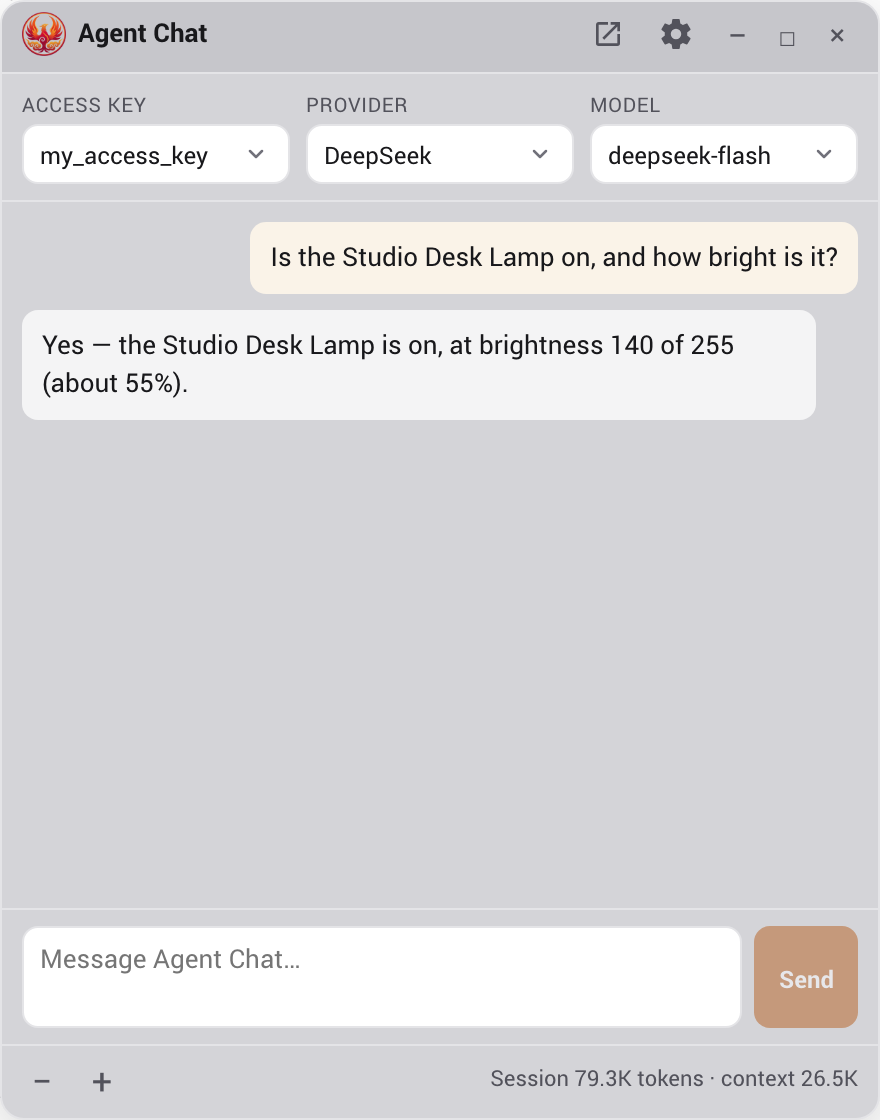
The window floats on top of Home Assistant and stays put as you move between tabs. Drag it by its title bar, resize it from any edge or corner (dragging and resizing both snap neatly to the screen edges so nothing runs off-page), minimize it to a small bar you can drag anywhere, or close it. If the window is minimized but still visible, pressing the Agent Chat button restores it to the full chat window.
Use the desktop pop-out window
On desktop, click Pop out to move the live conversation into a separate browser window. Streaming continues, and Pop in returns it to Home Assistant.
- Your browser may keep its address and security controls or ask you to allow pop-ups.
- The popup uses native window controls. In-app minimize and maximize controls appear only inside Home Assistant.
- Pop out is unavailable on mobile. Mobile Agent Chat opens maximized and stays below the device's safe top edge.
Panel only, or over all of Home Assistant
By default the chat window is available everywhere: it hovers above the whole Home Assistant interface, on any tab or dashboard, and stays put as you navigate, so you can keep talking to Home Assistant while you look at a dashboard or a config page. If you would rather confine it to the Phoenix MCP panel, turn off Show throughout Home Assistant in the Agent Chat settings card.
A few deliberate limits keep this predictable and safe:
- Press Shift+A to show or hide the window from any Home Assistant page. When reopened inside Home Assistant, the window returns to its last dragged location and size. The shortcut also closes Agent Chat while the popped-out window has focus. The next press opens the chat back inside Home Assistant, where you can pop it out again. The shortcut follows the keyboard-shortcut setting in your Home Assistant user profile. The panel header button remains available as well.
- Available everywhere is supported at the integration's minimum Home Assistant version. The panel window remains available if injection cannot start.
- While the kill switch is on, the window is hidden and cannot be opened until you turn the kill switch back off.
Using the chat
- Send: press Enter or click Send. Use Shift+Enter for a new line.
- Cancel: click Cancel while a prompt runs. Phoenix keeps streamed text visible, marks the exchange cancelled, restores your prompt for editing, and cancels pending reviews that have not begun execution. Closing the chat or losing its connection has the same review cleanup. Already dispatched actions continue to require verification.
- Retry: edit the restored prompt and send it again. The model does not retain the cancelled exchange.
By default the window stays quiet and shows only the reply, streaming in word by word; the agent's tool calls, tool results, and reasoning are hidden. It does not go silent, though: while the agent works, a single line names what it is doing right now, for example Working: search_entities, replaced as it moves on and gone once the reply arrives. A tool that reports its own progress takes that line over with something more specific, such as Compiling living-room-sensor: 40% during a firmware build. Turn on Show verbose output in the gear menu to watch every step instead (each tool it calls and what came back, plus a collapsible Reasoning block where the model exposes one).
Camera image results appear inline in the transcript for you. Phoenix sends an image to the selected model only when the provider's model metadata explicitly declares visual-input support; unknown and text-only models receive a text notice saying the image is operator-visible but unavailable for inspection. Image bytes stay in the active browser session and are removed from stored transcript data, so a reload shows an image-unavailable placeholder and visual context cannot continue without fetching it again.
Footer: text size and token usage
The footer is visible below the message box by default.
- Text size
- Use − and + to change transcript and message-box text in 0.5-point steps. Phoenix remembers the size in this browser.
- Session
- Total provider-reported input and output across every model call in this conversation.
- Context
- Input size of the latest model call. The Chat history limit setting bounds this value.
- Footer options
- Use the gear menu to hide the footer or show message timestamps. Providers that do not report usage show No usage data. Clearing the chat resets the counts.
The header has three selectors, each labelled: the Access key the agent acts as, the Account (which configured provider account runs it), and the Model. Switching the access key or account starts a fresh conversation, because the available tools and message format change. The model can be switched at any time.
Conversation style, detail, and Home focus
Interrupted responses: Agent Chat, Voice Agent, and AI Task make at most three provider requests for transient connection or malformed-response failures within a 12-second retry window, only before any output or tool dispatch. Provider policy blocks and output-length limits are not retried. After a tool has been dispatched, a provider failure stops the turn. Earlier actions may already have run.
Invalid tool calls: when a model finishes a tool call whose arguments are not valid JSON, nothing from that response runs. Agent Chat, Voice Agent, and AI Task return the error to the model, saying where its JSON stopped parsing and what is probably missing, so it can send the call again in the same turn; Agent Chat shows a note when this happens. After two such corrections in one turn (one for the Home Companion planner, which never corrects after a device command), the turn ends with an invalid tool call error; Voice Agent and AI Task also end it that way when no step is left for the corrected call. A tool call cut off by the output length limit or by a dropped connection is reported as such instead.
Refused requests: when a provider refuses a request outright, for example an unknown model or a request it does not accept, the error says so. When the provider explains why, the error includes its message, clipped, with recognisable keys, bearer tokens and IP addresses redacted. The Home Assistant log records the same message, and so does the Conversation Log when recording is on. A refused request is not retried, because the same request would be refused again.
No credit: when the provider account has run out of credit, has no balance or has reached a spending limit, the error says so and Phoenix does not retry it. Many providers report this as a rate limit, so Phoenix recognises the billing signals each supported provider uses, while ordinary rate limits are still retried.
If an action needs reconciliation, further writes using that access key are blocked, including through other MCP clients. Scoped MCP reads remain available, but new Agent Chat, Voice Agent, and AI Task turns wait for reconciliation. Open Needs attention at the top of the Phoenix panel, check the action and its approval result in Home Assistant, then select I checked the action outcome and Mark reviewed. Ordinary failures appear in the current interaction. Uncertain actions stay in Phoenix until reviewed, without creating Home Assistant Repairs notifications. Review permits new requests without repeating or undoing the action. Recovery records survive restarts; get_approval_status without an ID lists your access key's records. Check pending approvals before submitting an action again.
The Agent Chat card in Settings has three server-side conversation preferences. Conversation style chooses Direct, Warm, Calm guide, Lively, or Technical. Detail chooses Concise, Balanced, or Detailed. These choices shape only how the answer is written. They do not change the tools the agent can use, its arguments, verification, permissions, approvals, MESA checks, safety decisions, or what counts as completed work. A tone or detail request in your message takes priority for that reply.
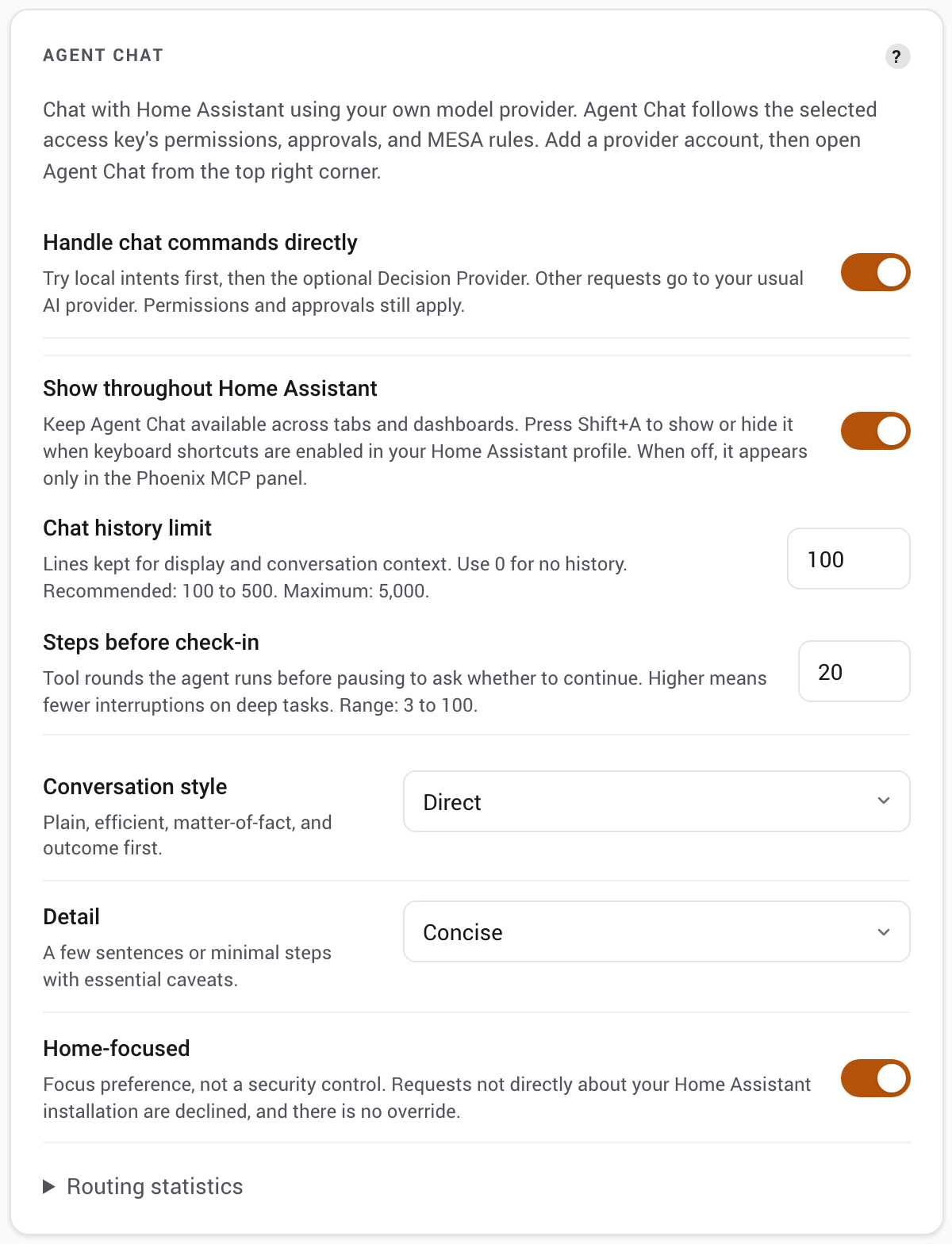
Home-focused limits the assistant to requests directly about your own Home Assistant installation: its devices, entities, areas, automations, dashboards, integrations, configuration, and state. Any other request receives a brief refusal, and there is no way to override it from the chat. If a request might be about your installation but is unclear, the assistant asks a short clarifying question instead of answering a general one. Turn the setting off to allow other topics. The restriction is enforced by instructing the model, so it is a focus preference rather than a security control; it does not change permissions. Phoenix does not call Home Assistant tools merely to decide whether a request is relevant.
Changing any of these settings affects the next model turn, including a conversation that already has history. A turn already running finishes with the settings it started with. You do not need to clear the conversation, and the chat window deliberately shows no persistent mode badge.
Optional command routing
Home Companion uses its household task harness and bypasses this routing. For other personas, in Settings > Agent Chat, turn on Handle chat commands directly to handle supported commands locally before calling your conversational provider. It defaults to off. An optional selected decision account handles eligible local misses. Phoenix permissions, MESA and approvals still apply.
Routing handles a first plain-text message and explicit follow-ups after successful local commands. An eligible ambiguous local target can instead produce a one-use clarification: choose a listed number or exact entity ID, or cancel, within two minutes. The choice is revalidated and any approval remains separate. Qualified JEV can review an explicit command against complete supported mixed history, including tool exchanges. Eligible local misses use candidate selection followed by history review within one decision timeout. Supported single-light references can continue after successful routed replies, with fresh history review each time. Relative values, ambiguous references, unsupported attachments or history, continuations and Home-focus overrides use the regular provider. The full conversation is preserved. Routing follows the panel language and installed Assist language catalog; non-English prompts have not been fully tested with JEV or other decision providers. See supported commands, qualification, data sharing and fallback behavior.
Approvals in the chat
When the agent tries to do something that a capability has set to confirm, the action does not just run. A card appears in the chat with Review…, Approve, and Reject buttons. Because you are the administrator viewing the panel, you can decide right there:
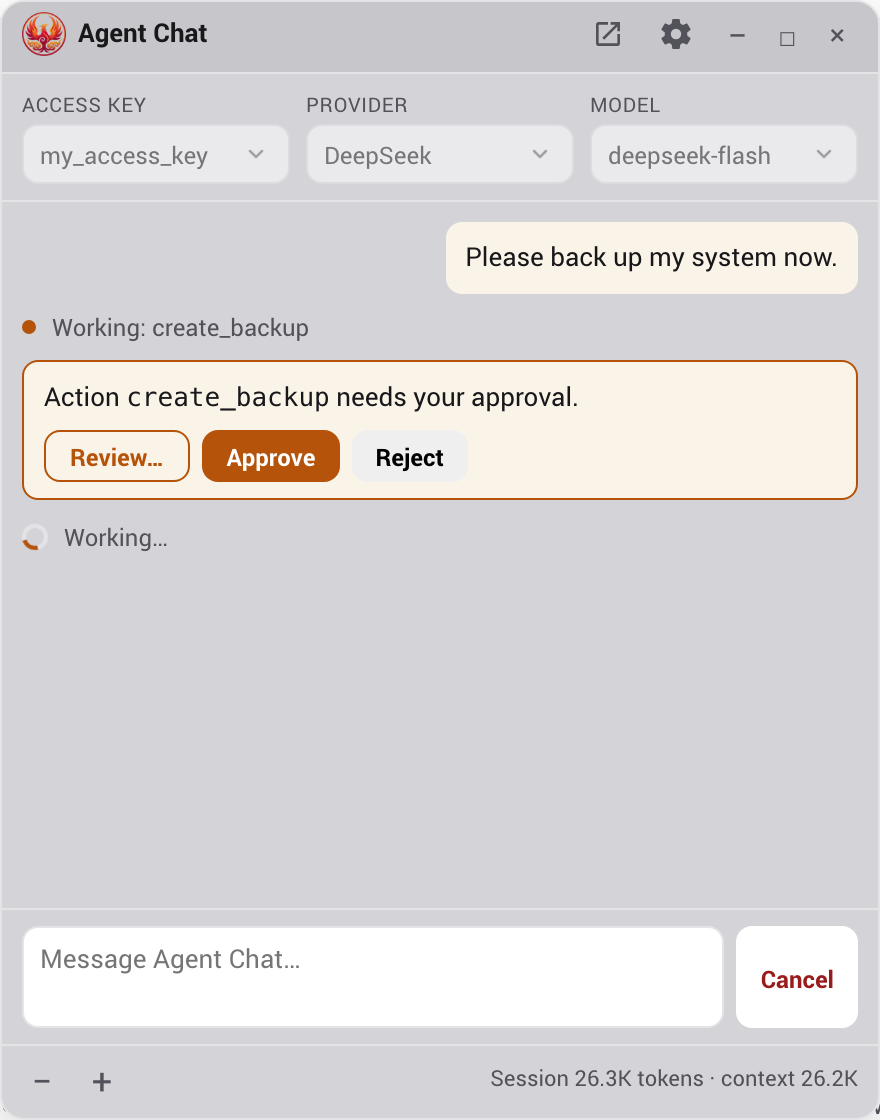
- Review… opens the Approvals tab for this request, where you can see the full details of what the action would change before deciding. The chat card stays put, so once you have looked you can come back and Approve or Reject inline.
- Approve and the queued action runs. Ordinary agent turns continue with the result fed back to the agent. Home Companion ends its request when approval is needed and does not resume later batch actions automatically. Approving also tells the agent you reviewed and accepted that exact change as it landed: it must not revise it, move it, or file a corrective follow-up on its own, even if the result differs from what it intended; if it notices a discrepancy, it says so in one sentence and stops, and you decide.
- Reject and the agent is told the action was not applied. The reason you type when rejecting is passed to the agent as direction for its next proposal, so rejecting with a note like "only two lines, average the sensors" is the natural way to iterate on a design; as many rounds as it takes is fine. The chat card itself has no reason box: type the reason in the reason field on the Review… screen, and it is attached whether you then reject there or on the chat card. Rejecting without a reason tells the agent to ask how you want to proceed rather than try again. If the exchange is going nowhere, Cancel stops the turn and cancels unclaimed pending reviews (the conversation stays on screen). It cannot undo an approved action whose execution has begun.
This is the same approval that would otherwise appear in the Approvals tab; Agent Chat just brings the decision inline so you do not have to leave the conversation, with Review… as the one-click way to jump to the full record when you want it.
Agent Chat cannot skip the gates
Approving in the chat is the same admin approval as anywhere else. The agent cannot grant itself an approval, reach an out-of-scope entity, or use a capability set to deny. The chat is a convenience layer on top of the same enforcement.
Options and clearing history
The gear button in the title bar opens the options popover. It only ever shows the controls the selected provider and model actually support:
- Show verbose output (off by default): when off, the window shows the final reply plus a single live line naming the tool currently running; when on, it also shows each tool call, its result, and the model's reasoning.
- Thinking: a single dropdown offering that model's real reasoning levels. Claude ranges from Off through the effort levels up to Max; DeepSeek offers Off, Low, High, or Max; OpenAI reasoning models (o-series, GPT-5) and Gemini 2.5/3 offer their reasoning levels (minimal to high); Grok offers Off, Low, or High; Kimi K3 offers Low, High, or Max and the K2 models a simple on/off toggle; Meta runs Minimal to X-High with no off (Muse Spark always reasons); MiniMax, Z.ai, and Qwen use an on/off toggle; Mistral Small latest and Medium 3.5 offer None or High; models with no established thinking control omit it.
- Temperature: shown only where it applies, DeepSeek (when thinking is off), standard GPT models, Grok (when thinking is off), Kimi's legacy
moonshot-v1models, Mistral AI, OpenRouter, NVIDIA NIM, OpenCode Zen, Tencent Cloud TokenHub, Groq, Together, Cerebras, Fireworks, Z.ai, Qwen, and Xiaomi MiMo (when thinking is off), and Ollama (local and cloud). It is not shown for Claude, Gemini, Meta, MiniMax, or the Kimi K2/K3 models, whose providers either reject it outright or recommend leaving it at the default for their reasoning models.
The same menu has a Clear chat history action, which empties the conversation and starts fresh without closing the window or changing your access key, provider, or model, and a Close button to close the popover.
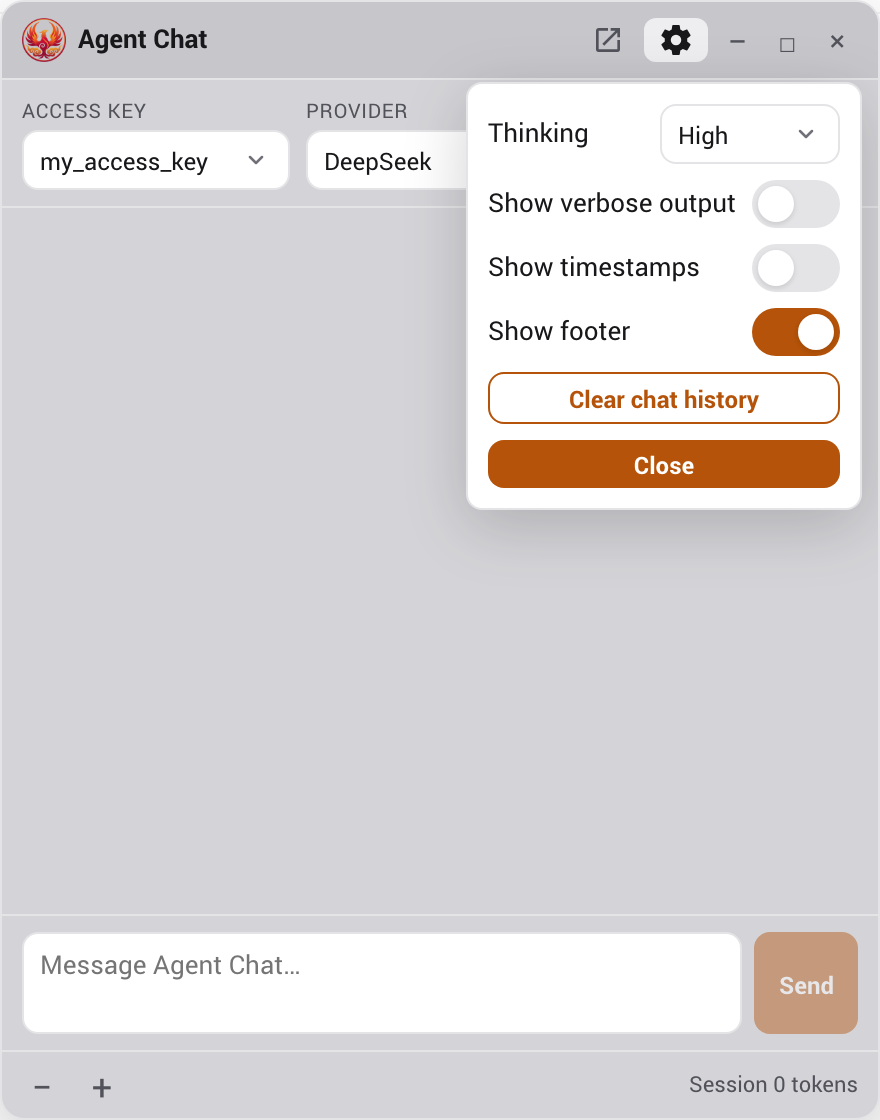
You can do the same thing from the message box: type /clear and press Enter to start a new conversation. The command is handled locally, it is never sent to the model and does not appear in the transcript, and it does exactly what Clear chat history does.
Chat history limit
The chat window keeps its conversation in your browser. The conversation and anything you have typed but not sent are kept in the browser's local storage for the signed-in Home Assistant user, machine and browser profile you are using, so they survive navigating away from the panel and reloading the page. Switching Home Assistant users opens that user's own saved conversation. Older unowned conversation history and window preferences are discarded, including geometry, provider/access key selections, text size and footer choices. Phoenix cannot safely assign those values to the first person who next signs in. Per-user browser data remains after logout until you clear it or clear site storage. That storage holds the transcript and text tool results, but never camera image bytes or provider image payloads; treat it like any other admin data on that machine. Clear chat history (or /clear) removes it, and the stored copy is capped: a very long conversation drops its oldest exchanges rather than growing without limit. Separately, when an administrator enables the Conversation Log, Phoenix also records sanitized Agent Chat turns on the server, in Home Assistant storage and therefore in its backups. Clearing the chat does not remove those records; they follow the Conversation Log's own retention limits and its Clear conversation history action.
Home Companion clears the prior transcript on every submitted request and never sends previous turns to its internal model. For other personas, the Chat history limit setting (in the Agent Chat Settings card) bounds how many lines the window keeps, which is also the conversation's memory. Setting it to 0 means the agent will have no memory of previous prompts; 100 to 500 lines is a good range, and the maximum is 5000.
For those other personas, Phoenix MCP resends the retained transcript with each turn, because the model has no memory of its own between turns; that transcript is how it knows what was said earlier in the conversation. (On Claude, the repeated portion is served from the provider's prompt cache at a reduced rate, so the added cost is smaller than the raw token count suggests.)
- Default is 100 lines; the maximum is 5000.
- Set it to 0 to keep nothing, but beware: each prompt starts with no memory of earlier prompts.
Raising the limit lets the agent remember more of a long session, at the cost of sending more text (and so more tokens) to your provider each turn.
Steps before check-in
A single request can take many tool steps, especially an investigation ("why did this light turn on 5 hours ago?") that reads history, the logbook, traces, and event context before it can answer. To keep a runaway from looping forever, Agent Chat runs a set number of tool steps per turn and then pauses to ask Continue investigating? with a Continue / Stop control. Continue picks up exactly where it left off and runs another batch; you can continue as many times as you like. Stop leaves the conversation as it is. Nothing is lost either way, so a deep task is never cut short with no answer.
The Steps before check-in setting (in the Agent Chat Settings card) sets how many steps run before that pause. The default is 20; the range is 3 to 100. Raise it to be asked less often on deep tasks, lower it to stay more in the loop. The same limit applies to the voice agent and AI Task, which have no one to ask and simply stop when they reach it.
Privacy and security
- Saved API keys are not returned to the browser. A key leaves the Home Assistant host only to authenticate Phoenix MCP's own requests to the provider you chose. It is stored in
.storage/phoenix_mcp_agentcli_secrets(in your Home Assistant config directory), a file separate from your access keys (.storage/phoenix_mcp) and the rest of Phoenix MCP's settings, and is not returned by the account API, logged, or written into a transcript. Duplicate account labels use an opaque account-ID suffix, never a credential fragment. It is included in Home Assistant full backups and in partial backups of.storage. You can delete it at any time by removing the account in Settings, or by ticking "Delete provider accounts and keys" in the Settings › Data Management wipe. - Agent Chat honors the kill switch. The chat runs the same scoped tools an external agent would; if you engage the kill switch, Agent Chat stops along with the rest of Phoenix MCP's agent surface. The provider settings remain reachable so you can manage them.
- Admin only. Opening the chat and configuring providers both require a Home Assistant admin session, the same as the rest of the panel.
- Provider handling shares conversation data. When the conversational provider handles a turn, requests and the tool results the agent sees are sent to the account you chose. A local routed command skips that model call, but its retained messages can be included in a later turn. Opt-in hybrid routing and decision comparisons can send the request and scoped entity metadata to a separate decision provider; background decision observation sends the message and language without entity metadata. Phoenix supports Anthropic, DeepSeek, OpenAI, Google, xAI, Groq, Moonshot, Meta, MiniMax, Mistral AI, OpenRouter, NVIDIA NIM, OpenCode Zen, Ollama, Z.ai, Together, Cerebras, Fireworks, Alibaba Cloud Model Studio, Xiaomi MiMo, and Tencent Cloud TokenHub. For a fully local setup, use a local Ollama server and keep hosted decision calls disabled.
- Model output is treated as untrusted. The assistant's replies are rendered as Markdown with all HTML and scripts escaped to plain text and non-text control characters stripped, so nothing a model emits can execute in your browser. If a reply did contain such content, the window shows a short notice so you know it was neutralized.