Panel guide
Use the Phoenix MCP sidebar panel to manage access keys, approvals, changes, MESA profiles, audit logs, and settings. This guide shows the main task in each tab.
Access keys
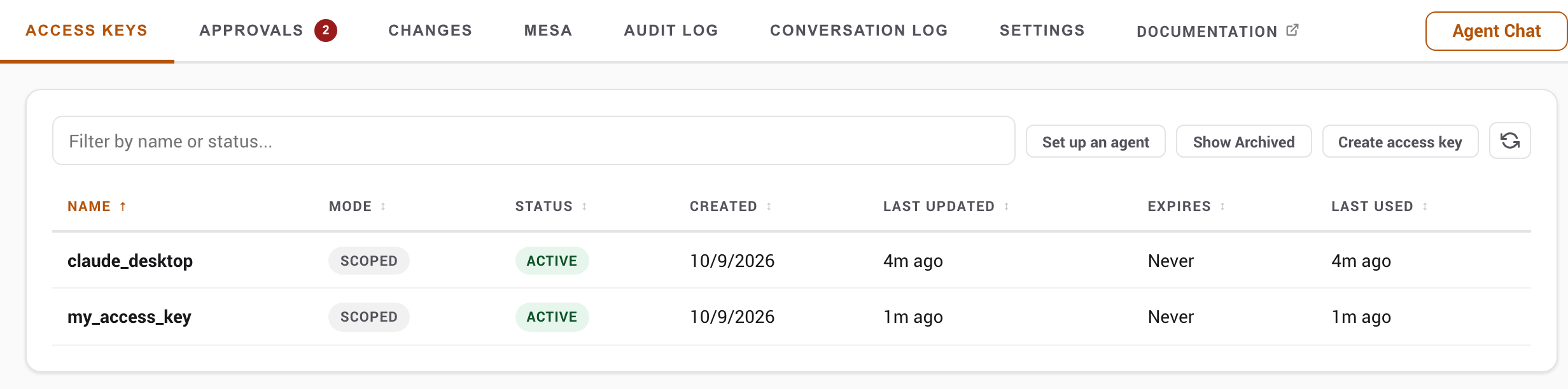
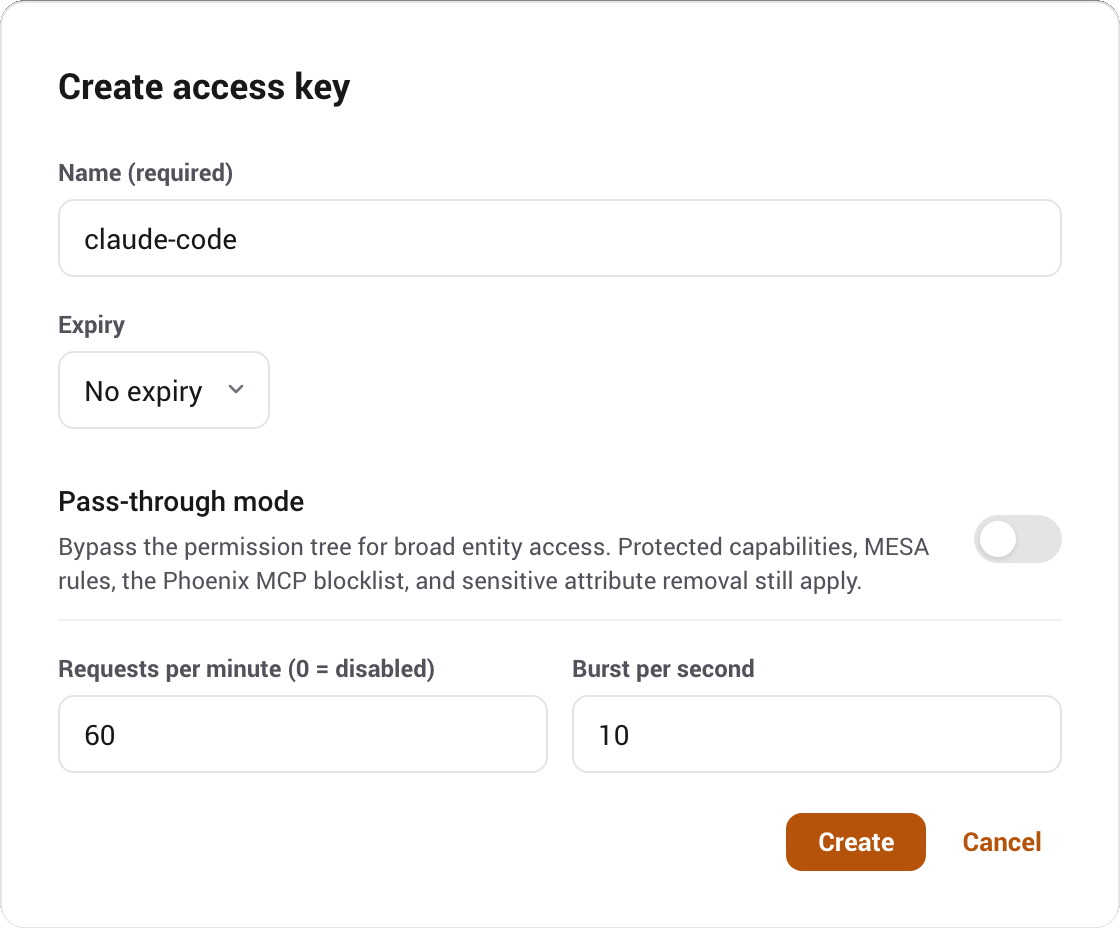
The Access keys tab lists every active access key with its status and last use. From here you create access keys, open one to edit it, or launch the guided setup that walks a first-timer all the way to a tested connection (see Quick start).
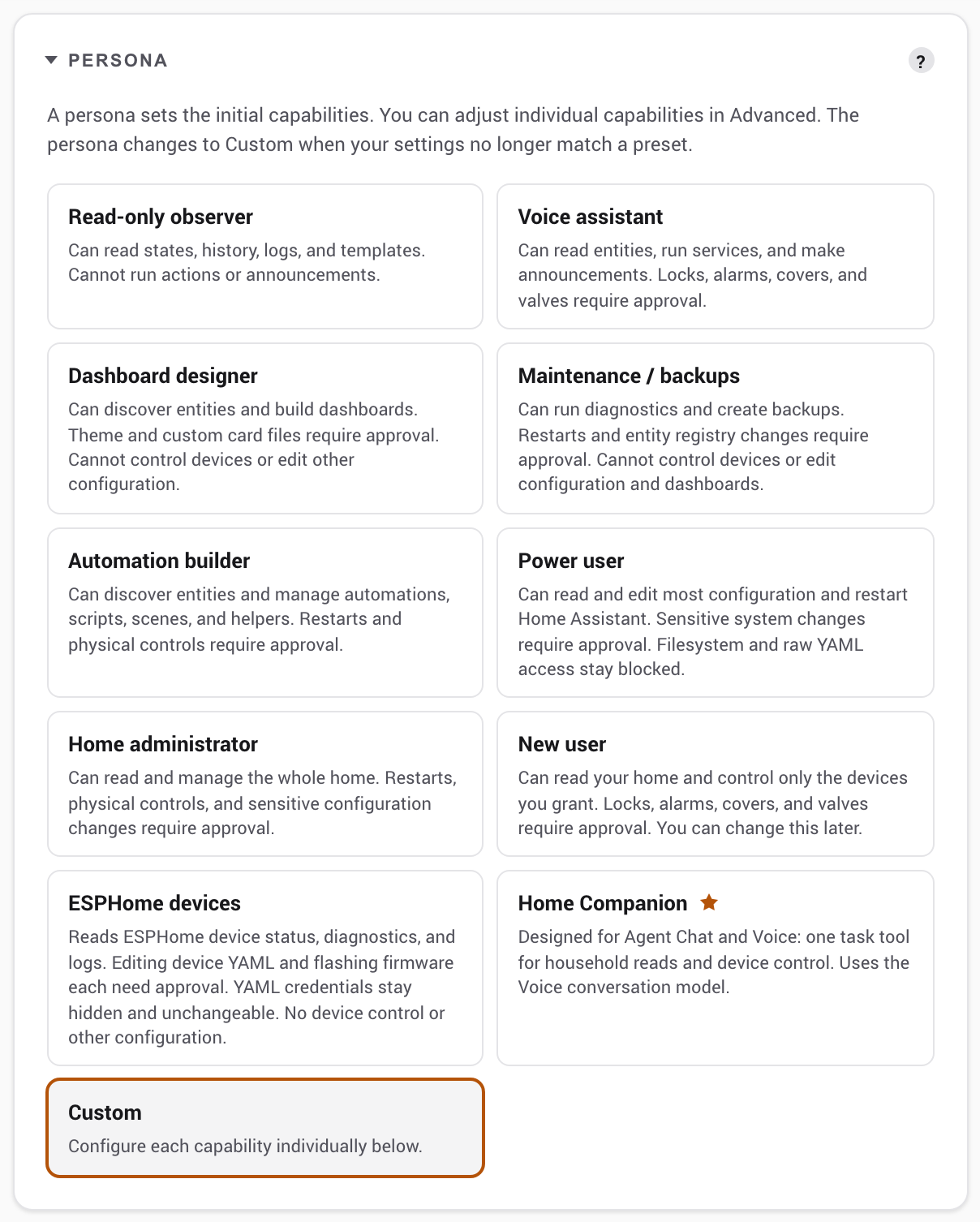
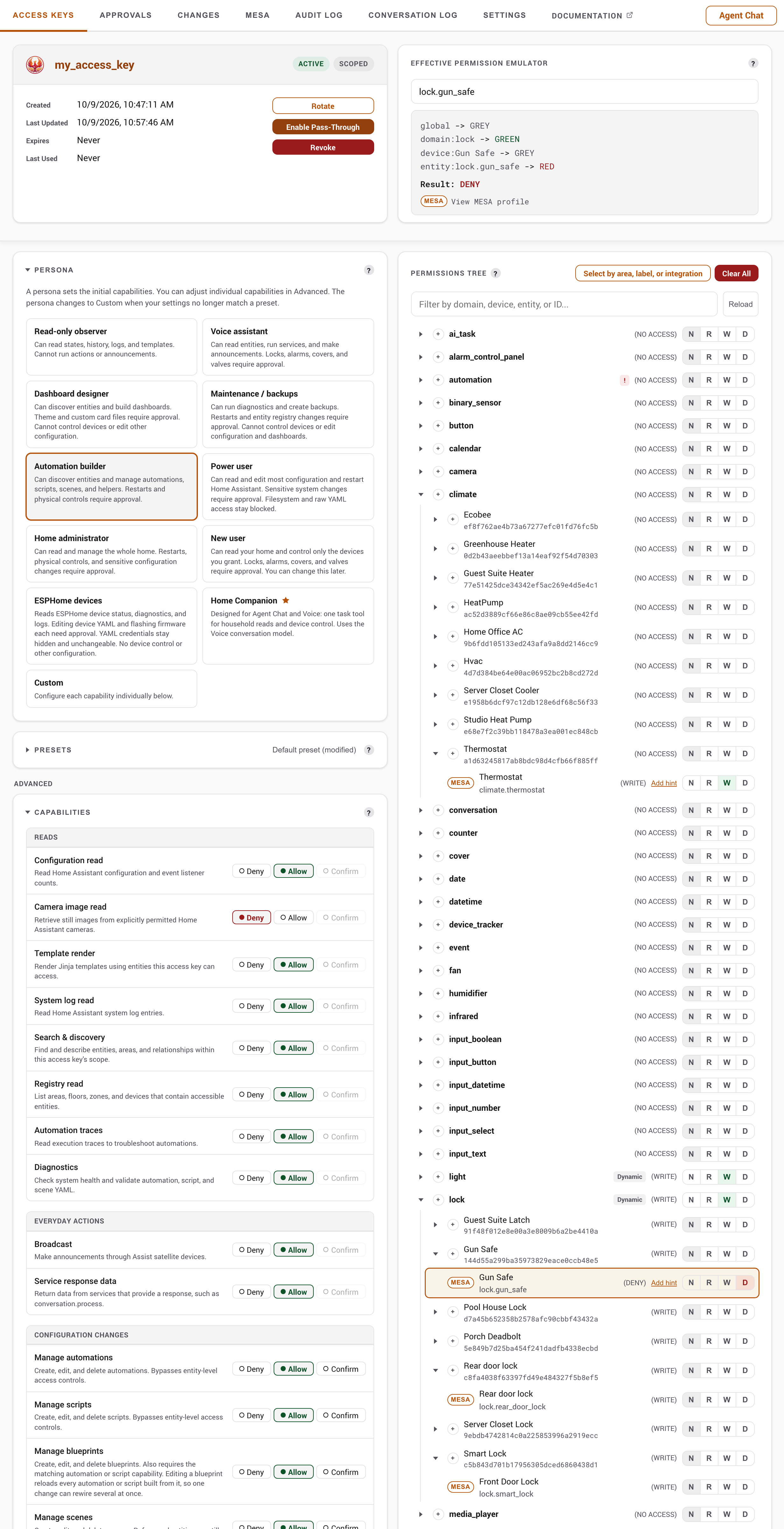
Opening an access key shows its detail page: the capability matrix, the permission tree, and lifecycle actions (rotate the raw value, revoke the access key). The capability matrix is where you pick a persona or set individual capabilities to deny, allow, or confirm.
Switch complete access key settings with presets
Settings presets (optional)
With the Enable presets toggle on in Settings, each access key gains a Presets card: named snapshots of its complete configuration (capabilities, permissions, rate limits, pass-through) you can switch between, for example a locked-down daily preset and a broader maintenance one on the same access key. Enabling the toggle saves every access key's current settings as its first preset ("Default preset", renameable inline).
The access key is always "in" one preset, and edits you make are that preset's unsaved changes: switching to another preset first saves them into the outgoing preset (the dialog lists exactly what), then applies the target, so nothing is lost and there are no save prompts. Applying the preset you are already in does the opposite: it reverts the access key to the preset's saved state, discarding the listed unsaved changes. The active preset cannot be deleted, and applying a preset that would enable pass-through asks for the same confirmation as enabling it by hand. Switching is admin-only; a connected agent cannot change its own preset, and after a switch the agent is nudged in-band to refresh its tool list (see the audit log's preset column for per-request attribution).
Painting the permission tree
The tree groups entities by domain and device. You rarely set every node: the usual pattern is to set a whole domain or device, leave the children grey so they inherit, then use RED to carve out exceptions. See Permissions for how the states resolve. Three panel tools make this faster.
Each row also carries a small MESA control, a + to create a profile or MESA when one already exists, which opens the profile editor over the tab without losing your place. It writes at the level of the row you clicked: a domain group authors a domain profile, a device group authors a device profile covering every entity that device owns, and an entity row authors an entity profile. Permissions and MESA are independent, so a profile written here changes what any access key may do with that entity by nature, not just this one. The MESA page covers what the levels mean.
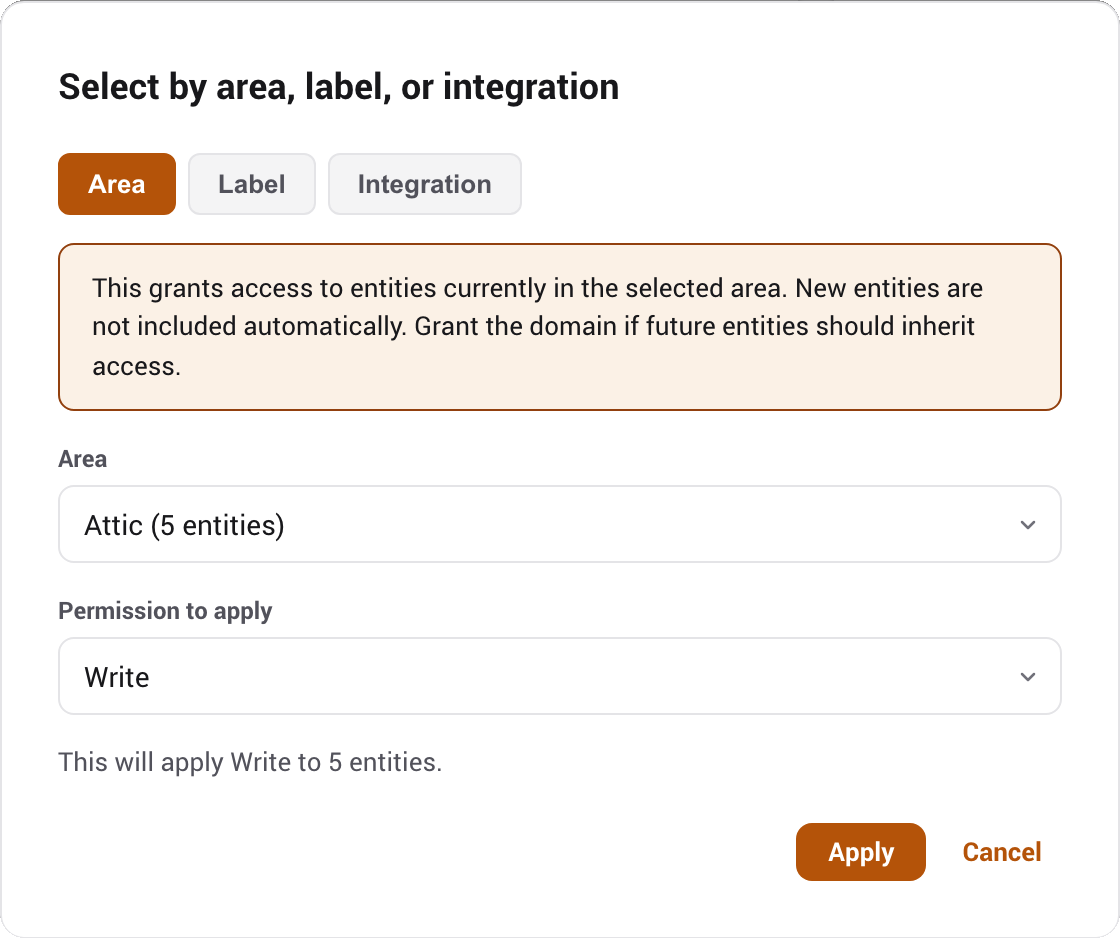
Select by area, label, or integration
The Select by area, label, or integration button applies one state to a server-resolved group. Pick a tab, choose the group or exact config entry, then choose Read, Write, Deny, or Remove grant. The integration tab shows title - domain and the full config-entry ID, then selects every currently owned device node and every live, enabled deviceless entity node. Existing child-entity restrictions stay unchanged.
It is a snapshot, not a new permission level
Area, label, and integration selection all resolve current registry membership and save the affected nodes in one atomic update. Future members are not picked up automatically. Registry-only deviceless entities still need a domain grant, and the dialog reports those domains. A shared-device warning means its device grant also affects entities owned by other config entries.
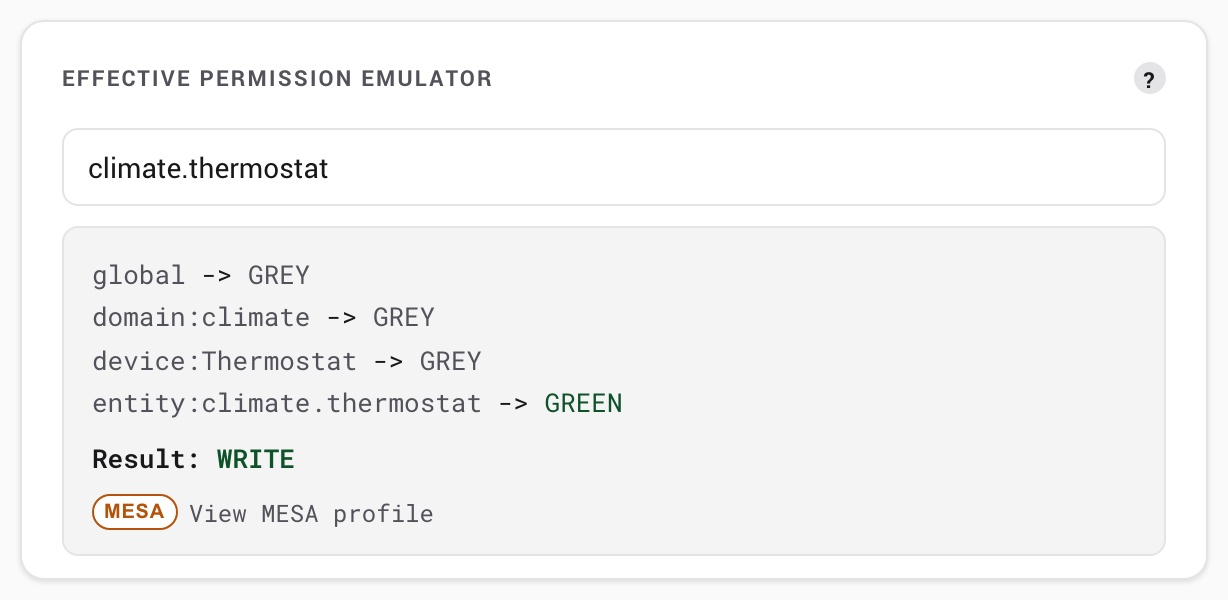
The effective-permission emulator
The emulator shows what Phoenix MCP will actually decide for any entity. Type an entity ID, or click one in the tree or summary, and Phoenix MCP runs the full two-pass resolver, then shows the result, which ancestor decided it, and the hint text if one is set. If a result surprises you, the path output names the ancestor that is overriding it.
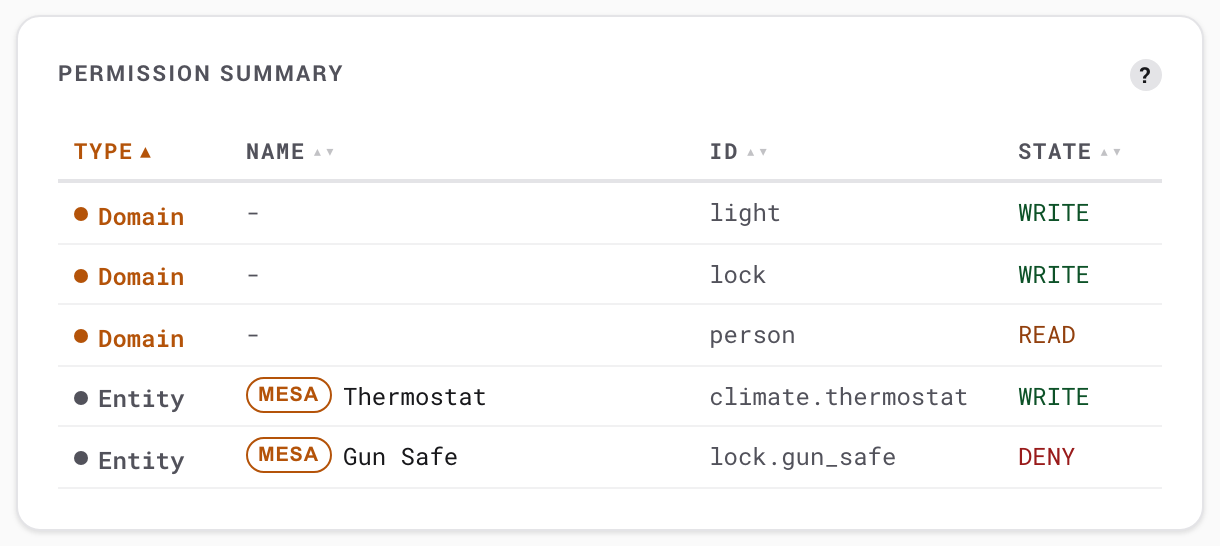
The permission summary
A compact, sortable table of every node set to something other than GREY. It lists the node type, friendly name, ID, and current state. Clicking a row loads that entity into the emulator. An empty summary means no grants exist and the access key has no access to anything.
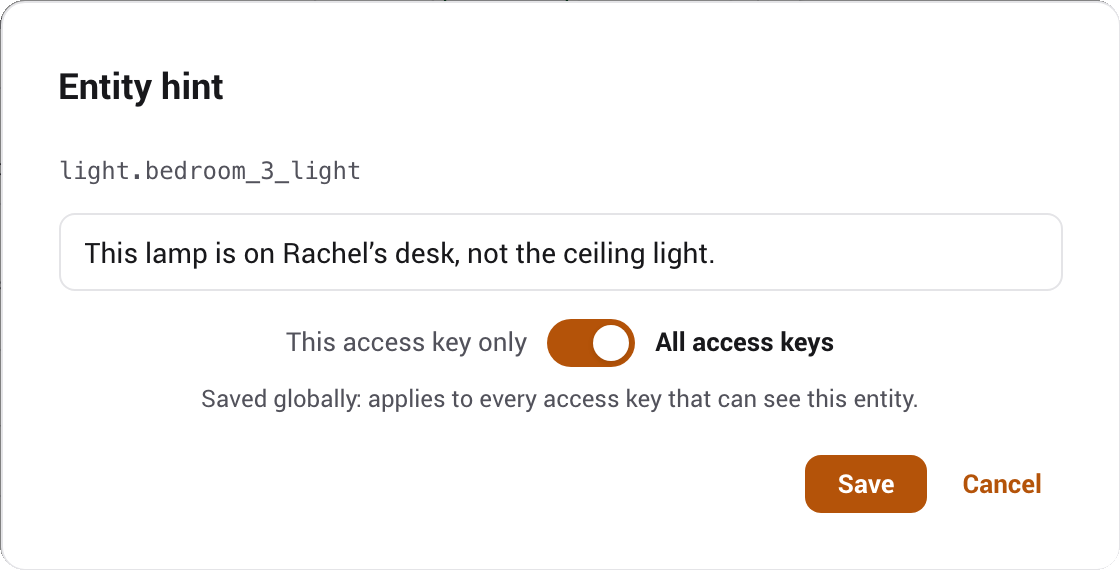
Entity hints
After granting access to an entity, you can attach an optional hint that is surfaced to the connected AI, to clarify what an entity represents, for example "This lamp is on Rachel's desk, not the ceiling light." Hints are capped at 200 characters and come in two scopes:
- This access key only
- A per-access-key hint, stored on the permission node. It is visible only to this access key and takes precedence over a global hint.
- All access keys
- A global hint for the entity, applied to every access key that can see it. Useful when the clarification is about the entity itself, not one agent's view of it.
Approvals
Resolved approval history retains at most 500 records for seven days. Raw arguments, diffs and results are cleared after one hour; older Details therefore cannot reproduce the original full payload.
When a capability or a MESA entity is set to confirm, the held action lands in the Approvals queue. The tab badge shows the pending count, and a notification can deep-link straight to a specific approval. Opening one starts in Summary, a plain-language view of what is proposed and what it will do. Its connected command box offers Details, Reject, and Approve and execute. Reject first opens an optional reason field, removes the approval action, and leaves Cancel and Reject, so an accidental click does not resolve the request or leave two competing decisions on screen.
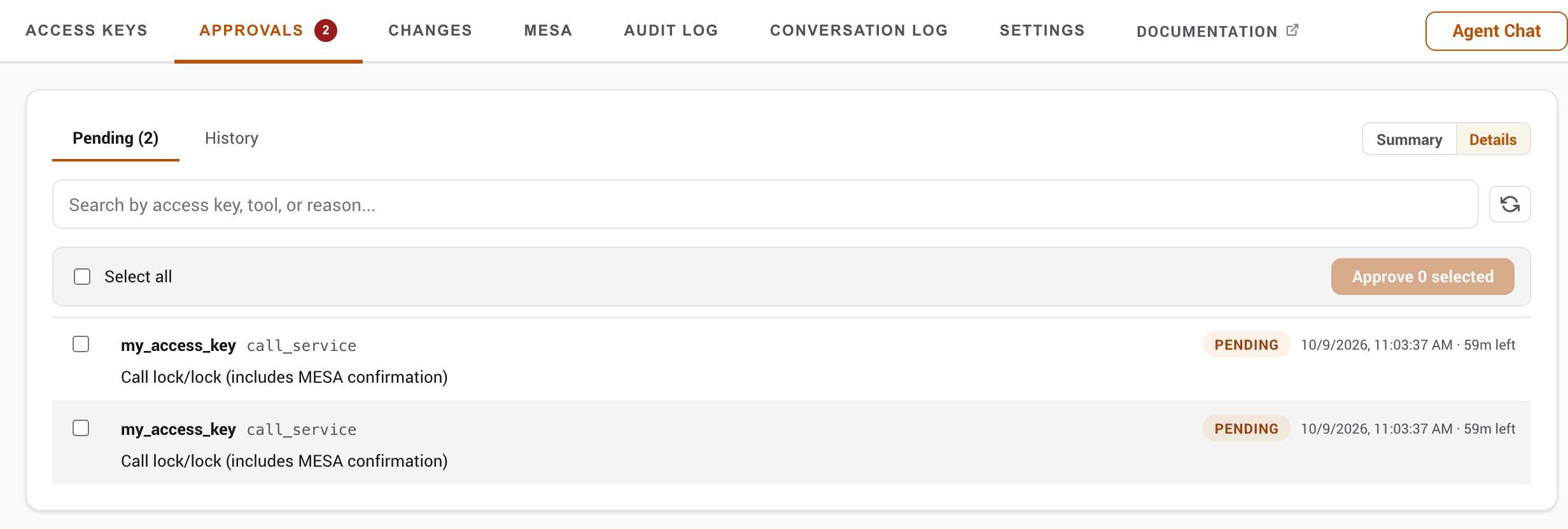
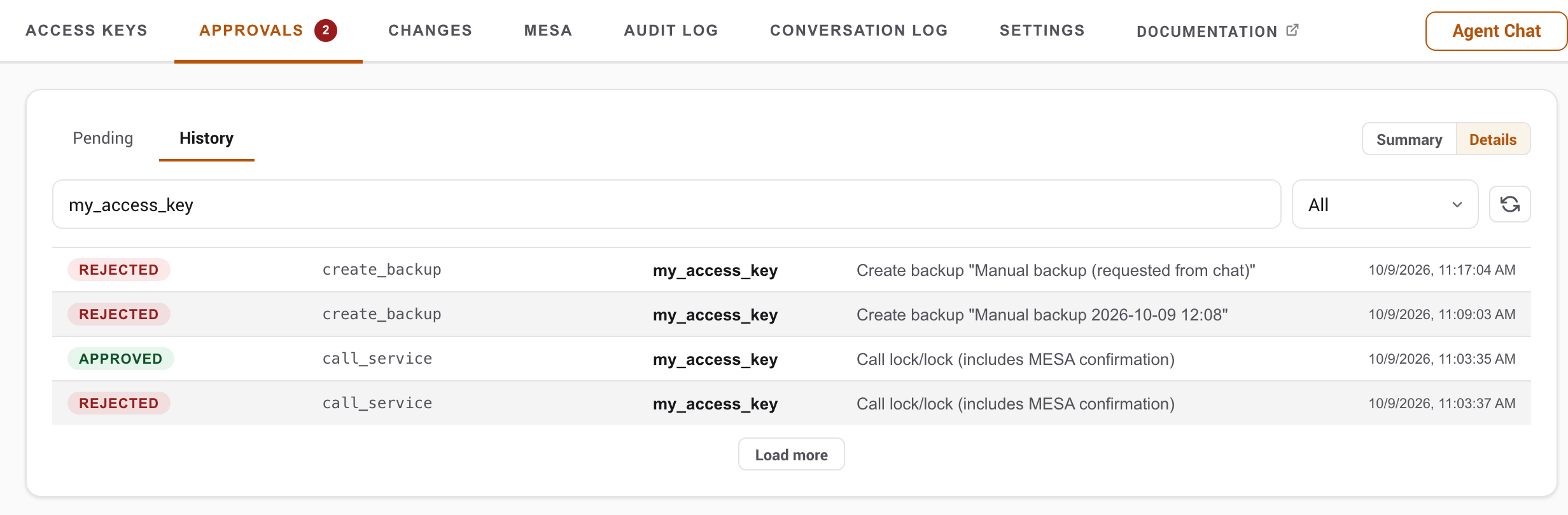
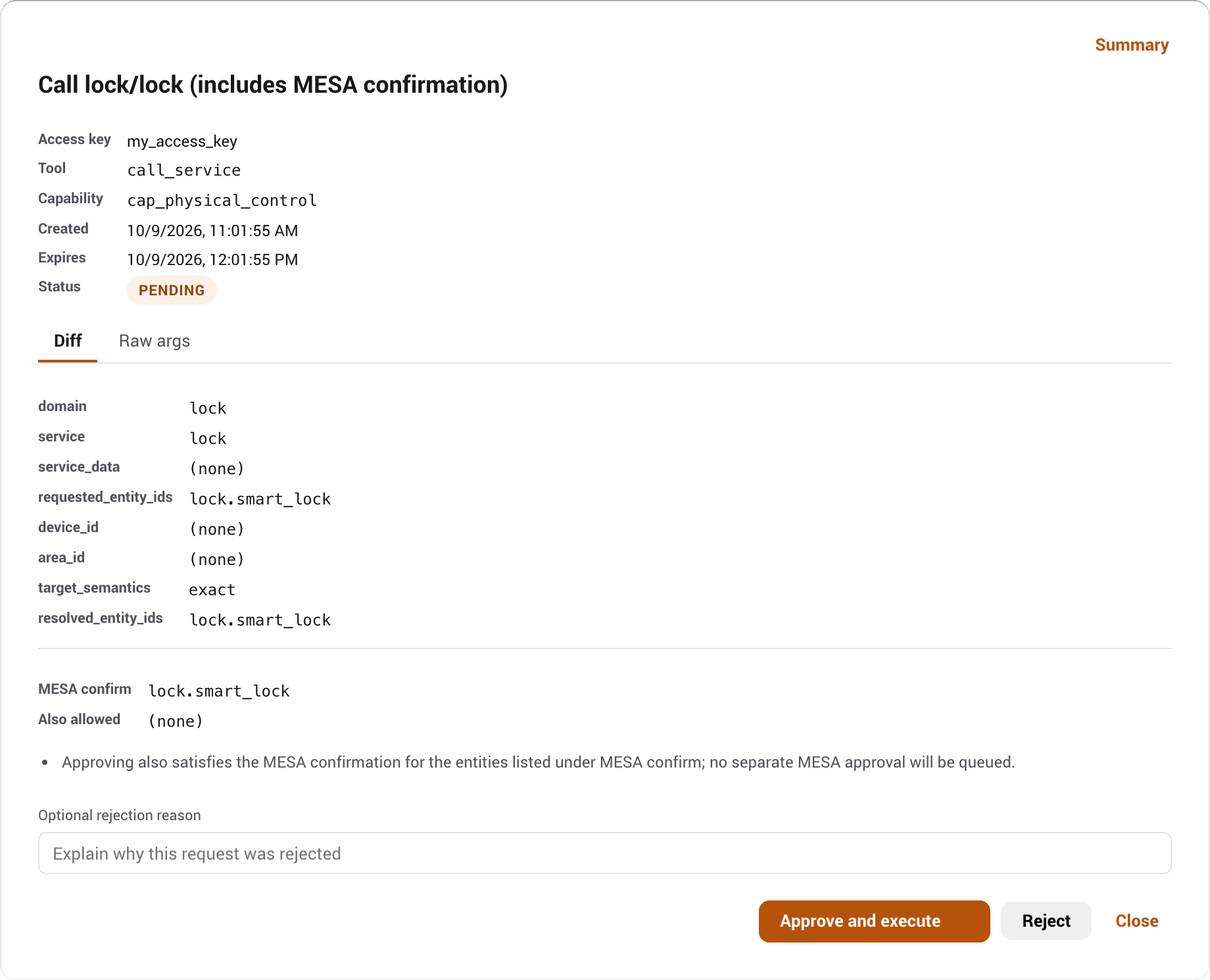
Details contains the existing technical title, access key, tool, capability, timestamps, redacted Diff or Preview, raw arguments, and result. The Summary | Details control in the Approvals toolbar changes the titles in both Pending and History and chooses the next modal's default for this browser. Switching inside an open approval is temporary and does not change that preference. Summary is the safe fallback when browser storage is unavailable or contains an old value.
Immediate control approvals explain their exact target contract in Summary and show the resolved entity list in Details. If selected membership, registry identity or permission changes before execution, Phoenix refuses the action and the agent must submit a new request. Older pending control requests without that binding also need a new request. A later failure in an action using several Home Assistant services can leave earlier effects applied; inspect the result before retrying.
Automation and script approvals review the configuration being saved. Their summaries explain that Home Assistant resolves future targets when they run, including changing groups, areas, devices, floors, labels and domains. Later native execution runs outside Phoenix permission and MESA checks. Active radio topology scans similarly declare that accessible-device membership may change before the scan runs.
With an approval open, press Up Arrow for the previous visible item or Down Arrow for the next. Navigation follows the current list and History filters. At the first or last item, the key does nothing and the page behind the modal stays still. Arrow keys retain their normal editing behavior while focus is in a reason field or code editor.
Batch approvals, recovery, and previews
When more than one approval is waiting, select several rows or use Select all. Phoenix validates, runs, and audits each action separately. A batch stops at the first failure and leaves the remaining approvals untouched.
Approving records the decision to disk before the action runs. If that write fails the approval is refused outright and nothing is run, so it stays in the queue and you can try again once the problem is fixed. If Home Assistant stops while an approved action is already running, that approval is resolved as failed on the next start, with the reason Interrupted; may have applied. Whether it took effect is genuinely unknown, so it is not offered for approval again: approving it a second time could repeat a service call or a configuration write. Check the result yourself, and have the agent request it again if it did not land.
Opening an approval from a notification shows that one approval on its own. When others are waiting, it says how many and offers Review all, which takes you to the queue where the tick boxes are. It does not offer to approve the rest from there, since you have not seen them yet.
The pending queue and History both use the same plain-language title as Summary, so YAML paths and dashboard coordinates stay in Details. Automations, scripts, scenes, and helpers use their saved names rather than showing only storage IDs. Older deletion records that did not save a friendly name say only the selected script, helper, scene, or automation instead of presenting an internal storage slug as a name. Device removal likewise uses the saved device and integration names; opaque registry and config-entry IDs remain in Details. History follows that proposal with the decision and its time, then the outcome. It distinguishes a completed action from one that was rejected, expired, cancelled, failed during execution, or was interrupted and may already have applied. Known executor errors have specific localized wording. An unknown diagnostic uses a localized Summary fallback instead of leaking technical English; its complete original result remains unchanged in Details.
The same approval appears here, in Agent Chat, and as a Home Assistant notification. Acting on it in one takes the buttons away in the other two immediately. While it runs it reads Being processed and offers nothing, and becomes actionable again if the action fails.
A dashboard layout change also offers a Diff | Preview switch in the diff's toolbar. Preview draws the proposed cards with Home Assistant's own card renderer and live entity states, in your active theme, so they look as they would on the dashboard. A card change previews only that card; a whole-layout change previews every view. The cards are display-only, so nothing you click in a preview can actuate a device. The switch appears once Home Assistant has loaded its card renderer in this browser session; if it is missing, open any dashboard once and return.
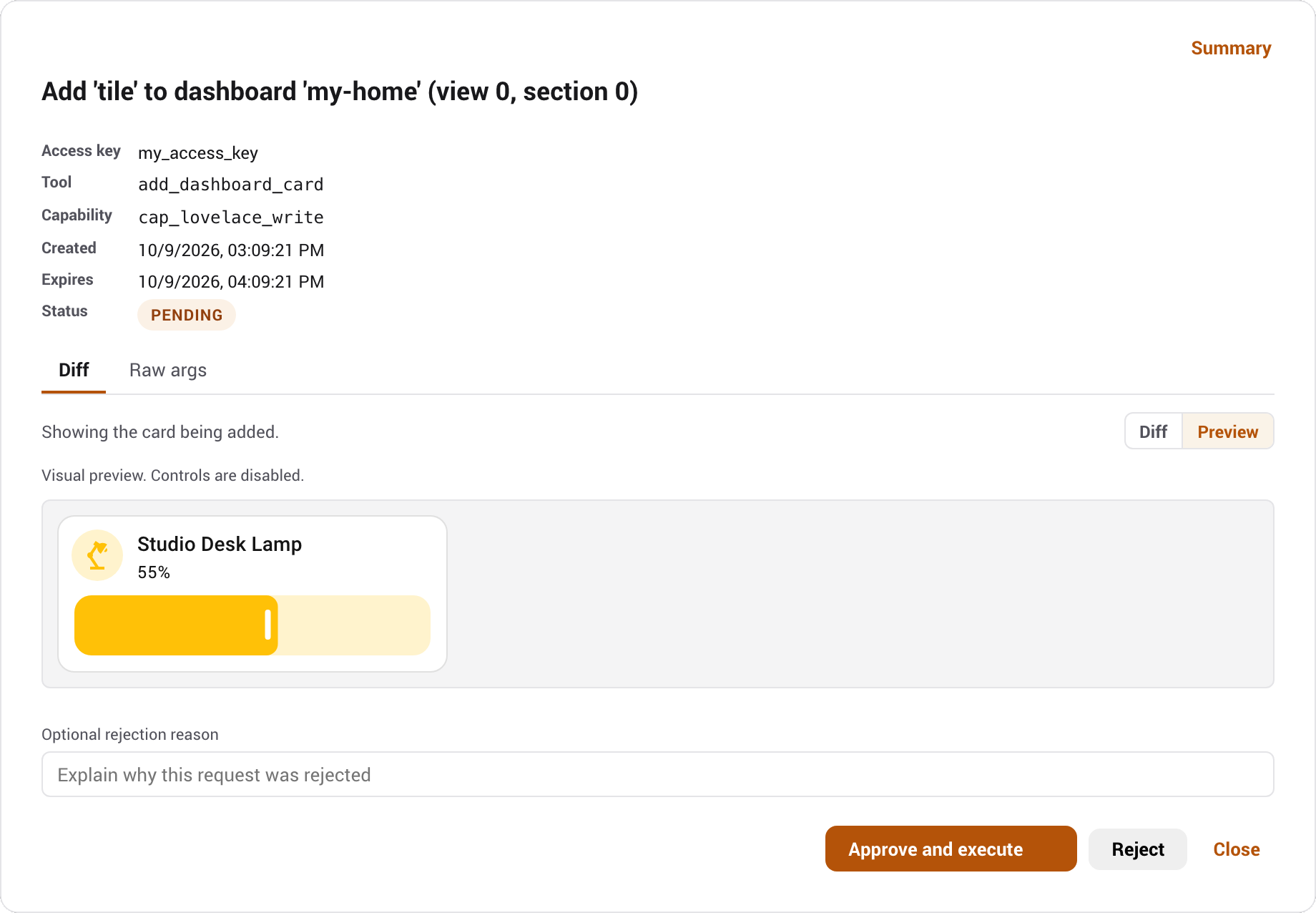
Drawing a card runs its code in your browser with your Home Assistant session, including any JavaScript templates a custom card evaluates from its configuration. The Diff | Preview choice is remembered, so switch to Diff before opening a proposal you do not trust.
An Energy dashboard change offers the same Diff | Preview switch, but it renders the Energy configuration itself: your sources and individual devices as a list, with added rows marked, removed rows marked, and a change shown as the old value directly above the new one. Energy has no card layout to draw, and Home Assistant's own energy cards read the saved preferences rather than the pending ones, so a card here would show your current dashboard instead of the change you are approving. Rows pair by statistic, so renaming a device reads as one substitution rather than an unrelated removal and addition.
Every before/after diff, on this tab and on Changes, also has a code editor button in the same toolbar. It hands both panes to Home Assistant's own editor, the one you already see in the ESPHome add-on, with syntax colours and line numbers, which makes a long device YAML far easier to read than a plain monospace block. The trade is stated in the toolbar when you switch: the code view cannot tint changed lines, so use the line diff when the question is what changed and the code view when the question is what the file says. The choice is remembered separately from the side-by-side and stacked setting.
If a proposed card fails to render, Home Assistant's configuration error card appears in its place and the message is listed below the preview as text with a Copy button. Enter a rejection reason to explain a problem to the agent. A draft reason stays with the approval and is also used when rejecting it from the Agent Chat card.
The panel subscribes to Home Assistant's event bus, so a new or resolved approval refreshes the queue immediately; the pending-count badge and the queue also poll every few seconds as a backstop in case an event is missed.
Send approval links to your phone
Create a Home Assistant automation using the phoenix_mcp_approval_requested event. Replace notify.mobile_app_your_device with your phone's notification action. This example sends a link to the exact request; tapping it opens Phoenix MCP for review.
alias: Phoenix approval notifications
triggers:
  - trigger: event
    event_type: phoenix_mcp_approval_requested
conditions:
  - condition: template
    value_template: >-
      {% set path = trigger.event.data.get('review_url', '') %}
      {{ path is string and
         path | regex_match('^/phoenix-mcp/approvals/appr_[0-9a-f]{16}$') and
         path == '/phoenix-mcp/approvals/' ~ trigger.event.data.get('approval_id', '') }}
actions:
  - action: notify.mobile_app_your_device
    data:
      title: Phoenix MCP approval
      message: Review the pending request in Phoenix MCP.
      data:
        tag: "phoenix_approval_{{ trigger.event.data.approval_id }}"
        url: "{{ trigger.event.data.review_url }}"
        clickAction: "{{ trigger.event.data.review_url }}"
mode: queued
The condition forwards only an approval path matching that event's ID. Each request has its own notification tag, including identical requests. The url and clickAction fields support iOS and Android respectively; see the Companion App notification guide.
The event contains approval_id, access_key_id, access_key_name, tool_name, cap_name, review_url, expires_at and timestamp. It carries no arguments, configuration diff or target list. Use the tool or capability to filter notifications, and inspect the full proposal in Phoenix MCP. The relative review_url uses the Home Assistant server that sent the notification; for email or chat, prepend your configured Home Assistant URL.
This automation remains active when Phoenix MCP's built-in approval notifications are disabled. Opening a link requires Home Assistant administrator access and does not approve or reject anything. The review page shows the stored request's current status, including expiry or a decision already made elsewhere.
MESA
The MESA tab is where you author the per-entity safety profiles. It lists profiles by control mode and lets you edit profiles at the entity, device, area, integration, domain, and deployment-default levels, with canonical-tag autocomplete and a validation view for issues and orphans. A Suggested profiles section scans for under-protected entities, risky devices with no coverage, and automations whose actions reach them, and offers each profile as a one-click Apply, a prefilled Review, or a persistent Dismiss. The concept, the modes, and the editor's guardrails are covered on the MESA page.
Audit Log
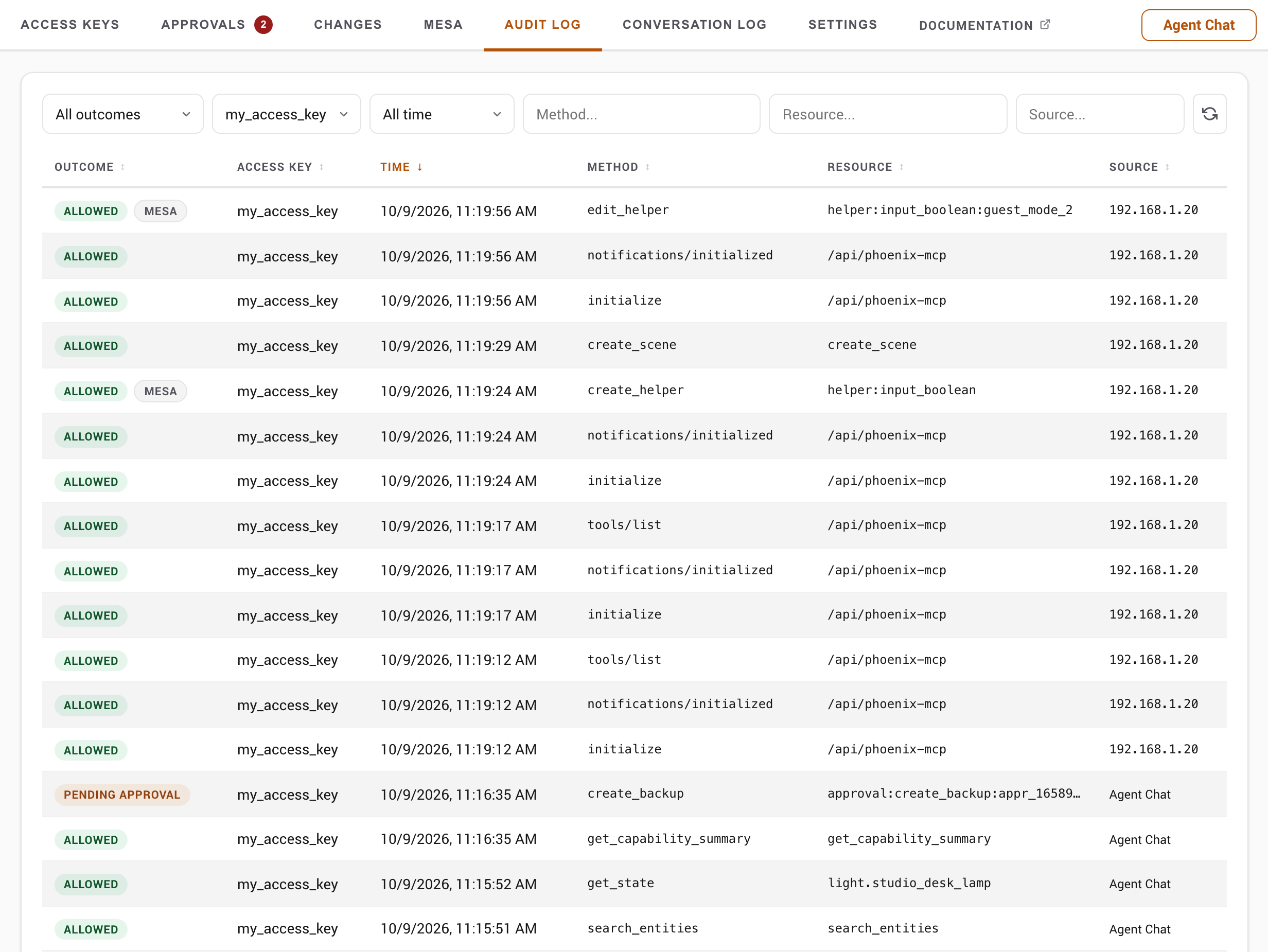
The Audit Log tab is a filterable view of the request log: request ID, time, access key, method, resource, outcome, and source. Source shows an IP address for network requests and a friendly surface name for requests made inside Phoenix MCP: Agent Chat, Assist Tool Provider, Voice Agent, or AI Task. Audited administrator mutations appear under the acting HA administrator; restores may also retain the original access key as provenance. Filter by access key, outcome, or source to trace recorded actions. With an entry open, use Up Arrow and Down Arrow to scan the previous and next items in the current sorted list. The log's retention and storage are described in Operations.
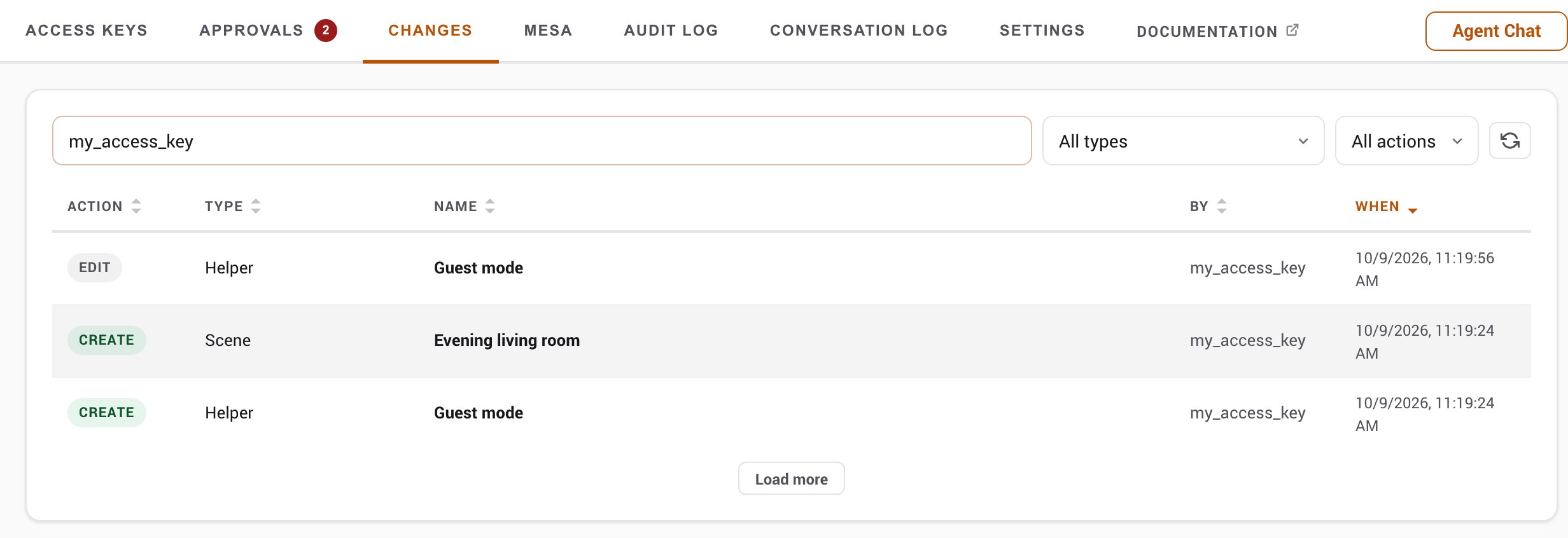
Changes
The Changes tab is the configuration history for everything an agent builds. It opens on a feed of recent create, edit, and delete actions across automations, scripts, scenes, helpers, blueprints, dashboards, entity-registry edits, ESPHome device YAML, the raw configuration.yaml, and scoped file writes, and refreshes live as new changes land. Rows carry a one-line description of what actually changed where the resource name alone would not say: a dashboard card operation shows the card and its position ("added custom:apexcharts-card (view 0, section 6)"), a whole-layout or raw file write shows the card-count or size movement, a one-key configuration.yaml edit names the key, and an entity edit lists the changed fields.
Selecting a row opens that version's before/after diff directly, rendered as YAML for structured resources or as a line-highlighted text diff for raw configuration.yaml and file writes, with the resource's other versions in a timeline beside it so you can step through its history.
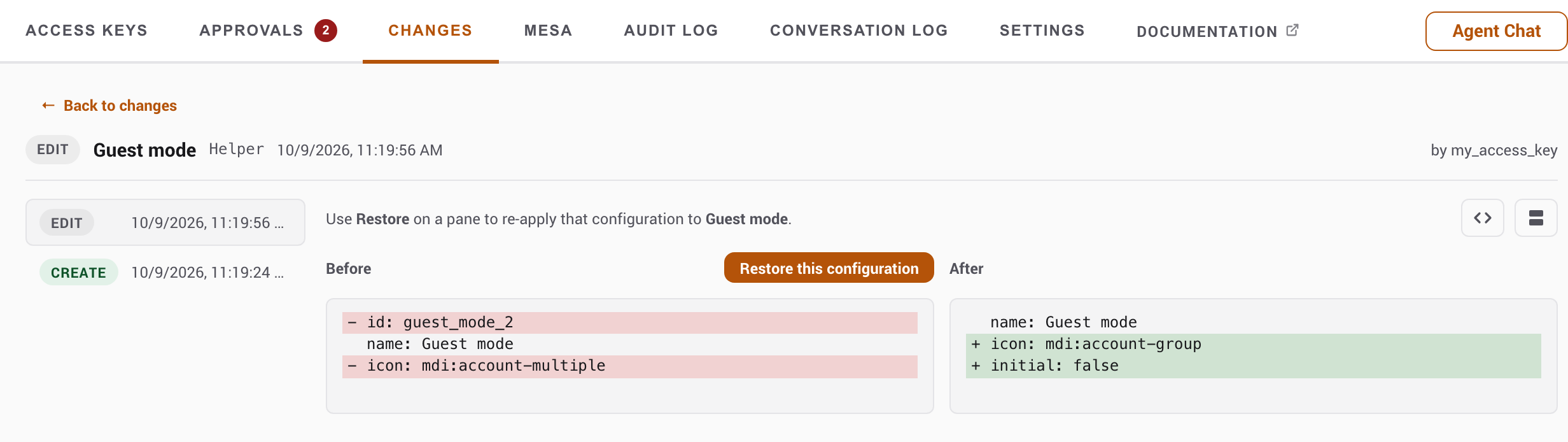
Each pane has its own Restore this configuration button, so you re-apply the Before (to undo a bad edit) or the After (to re-apply the change) explicitly. A button is hidden when restoring it would do nothing: an empty pane, like the Before of a freshly created resource, or the After of the resource's latest version, which is already its current config. A raw snapshot too large to have been stored shows a notice and cannot be restored.
Restore edits the resource if it still exists, or recreates it if it was deleted, and is itself recorded as a rollback you can undo in turn. Automations, scripts, scenes, and blueprints come back under their original id, so re-restoring the same delete is idempotent; storage helpers may receive a fresh ID, while qualified Template sensor/binary-sensor recovery preserves the entity ID and custom name with a new config-entry ID. A few snapshots refuse to restore rather than restore incorrectly: a config whose snapshot contains YAML tags such as !secret, and a deleted entity-registry entry, which belongs to its integration and cannot be recreated; the admin API reference lists these. If the configuration Home Assistant reads back after a restore does not match the chosen version, the panel reports that the restore may be only partly applied instead of reporting success, and no rollback version is recorded; Phoenix rechecks the change and asks for review in Approvals if it still differs. Storage and retention are described in Operations.
A dashboard version also offers the same Preview toggle as the Approvals tab, with a Before/After switch so you can see what the layout looked like on either side of the change; unlike the Approvals card (which previews only the proposed After layout), a version records both sides, so you can preview the Before as well whenever the version has one. A side with no snapshot is disabled, the same rule as the Restore buttons: a resource's first-ever layout has no Before, and a deletion has no After. Restore stays a diff-view action.
Configuration recovery requests appear in Approvals when interrupted changes need review. Changes contains ordinary version history. Check current state before deciding whether to restore a supported snapshot or keep the reviewed configuration. Review is refused while a Home Assistant command that Phoenix stopped waiting for may still be running, because that command could still overwrite what you check; try again once it has finished, or after restarting Home Assistant. See supported families and recovery limits.
Settings
The Settings tab holds the global, deployment-wide options: the kill switch, logging controls, the rate-limit notification, the MESA mode, the audit buffer size, and the experimental toggles (in-context MESA profile buttons, and presets). These are detailed in Operations. The first cards are LLM providers, where you configure any of the 22 supported provider types and choose whether and how often Phoenix re-checks each provider's models, and Decision Provider. The Agent Chat card follows, where you set the chat memory and steps-before-check-in limits, and choose Conversation style, Detail, and optional Home-focused behavior; its routing statistics sit at the bottom.
The Settings tab also connects Phoenix MCP to Home Assistant's AI features:
- Voice Agent: runs Phoenix MCP's model as a conversation agent with its own style, detail, and Home-focused settings.
- Assist Tool Provider: gives a bound access key's tools to a model supplied by another integration.
- AI Task: registers an AI Task entity for generating automation data.
Each feature uses an access key you choose and keeps the same scope, approvals, and audit trail.
Conversation style and Detail control presentation only. Home-focused is labelled Focus preference, not a security control. These server-side settings take effect on the next model turn without clearing existing Agent Chat history; an already-running turn finishes with its starting settings. Ordinary external MCP clients and the Assist Tool Provider control their own presentation. Home Companion uses these settings to render its task report, including external home_request calls, which default to Voice settings. It clears prior Agent Chat history on each new request and bypasses Decision Provider routing and tool review. Tool review is available only through the administrator API for deliberate evaluations; Settings has no review controls for any persona. Voice also hides the unused direct-command switch for Home Companion bindings. See Home Companion setup and behavior.
Language and theme
The Integration information card carries two display preferences. Both are per-browser rather than deployment-wide, so each admin sets their own and neither is written to Phoenix MCP's storage or shared between users.
Language chooses the panel language. Phoenix MCP ships English, Spanish, French, Italian, German, Dutch, Polish, Russian, Simplified Chinese (zh-Hans), Traditional Chinese (zh-Hant), Korean, Japanese, Swedish, Danish, Norwegian, and Finnish. Auto is the default and follows the language set on your Home Assistant user profile, so in most cases there is nothing to choose; pick a specific language only when you want the panel to differ from the rest of Home Assistant. Every option is named in its own script, so you can find yours whatever the panel happens to be showing. The choice applies to the Agent Chat window and the in-context MESA buttons as well, and takes effect immediately without a reload.
A few things stay in English on purpose rather than being missed. The six access-key sensors keep English sensor-type names and stable entity_id values, so changing credential display terminology does not break dashboards or automations. Agent-facing text is also never translated: tool descriptions, the skill document, and the errors an agent reads stay English so a model's behaviour does not change with your display language. The name Phoenix MCP itself is a brand mark and stays in Latin script in every language, which is also how Home Assistant treats its own name; several places name this integration inside Home Assistant's own interface, where it cannot be localized at all.
Theme is light, dark, or follow-the-system, and behaves the same way.
Agent Chat
Open Agent Chat from the panel header to use a scoped agent without an external client. With Show throughout Home Assistant enabled, press Shift+A to show or hide it from any Home Assistant page. See the Agent Chat guide for provider setup, pop-out mode, memory, and privacy.